✓ SSDs use flash memory (NAND) to store data, unlike HDDs which use spinning platters.
✓ They offer significantly faster read/write speeds, leading to quicker boot times and application loading.
✓ SSDs have no moving parts, making them more durable, quieter, and less prone to mechanical failure.
✓ While historically more expensive per gigabyte, SSD prices have become increasingly affordable and competitive.
How It Works
1
Data Storage in NAND Cells
Instead of magnetic platters, SSDs store data electronically in microscopic NAND flash memory cells. These cells are organized into blocks and pages.
2
Flash Controller Manages Operations
A sophisticated flash controller acts as the SSD's brain, managing data read/write operations, error correction, wear leveling, and garbage collection to optimize performance and longevity.
3
No Moving Parts for Speed
Because data is accessed directly from memory cells via electrical signals, there's no mechanical delay from spinning platters or read/write heads. This results in near-instantaneous access times.
4
Interfacing with the System
The SSD connects to your computer's motherboard via interfaces like SATA or NVMe (PCIe), which dictate the maximum data transfer speeds and overall performance potential of the drive.
Understanding the Core: What Makes SSDs So Fast?
Photo: Eyüpcan Timur / Pexels
At its heart, the answer to "what are Solid State Drives (SSD)" lies in a fundamental departure from traditional hard disk drive (HDD) technology. Unlike HDDs, which rely on spinning magnetic platters and read/write heads to access data, SSDs utilize non-volatile flash memory, specifically NAND flash. This distinction is critical because it eliminates all mechanical components, which are the primary bottleneck in HDD performance. Imagine trying to find a specific paragraph in a physical book by flipping through every single page versus instantly recalling it from your memory; that's the difference between an HDD and an SSD. The absence of moving parts means data can be accessed almost instantaneously, as electrical signals travel at light speed, not limited by mechanical motion. This inherent design advantage translates directly into the lightning-fast boot times, rapid application loading, and significantly quicker file transfers that users have come to expect from SSDs.
The architecture of an SSD is built around an array of NAND flash memory chips. These chips are organized into blocks and pages, where data is stored as electrical charges. A crucial component of every SSD is the flash controller. This isn't just a simple interface; it's a powerful processor that manages all data operations, including reading, writing, erasing, and garbage collection. It also employs sophisticated algorithms for wear leveling, which distributes write operations evenly across all memory cells to extend the drive's lifespan, and error correction code (ECC) to maintain data integrity. Without this intelligent controller, the raw NAND flash would be far less efficient and reliable. The controller acts as an orchestrator, ensuring that data is stored and retrieved optimally, even under heavy loads. This intricate dance between NAND flash and the controller is what defines an SSD's performance and durability. Understanding these core components is the first step in appreciating the technological leap that SSDs represent in data storage. Exploring different types of storage devices can further illuminate the advancements represented by SSDs. The transition from mechanical to solid-state storage has not only improved speed but also reduced power consumption and increased physical resilience, making SSDs ideal for a wide range of computing environments, from ultra-thin laptops to high-performance servers.
The Unmistakable Benefits: Why Upgrade to an SSD?
Photo: cottonbro studio / Pexels
The question of "what are Solid State Drives (SSD)" quickly leads to another: why should I care? The answer lies in the profound benefits they offer, transforming the user experience across virtually all computing tasks. The most immediate and noticeable advantage is speed. Booting up an operating system that might take minutes on an HDD can be reduced to mere seconds with an SSD. Applications that once lagged upon opening now launch almost instantly. Files, whether large multimedia projects or vast document archives, transfer with remarkable swiftness. This speed isn't just a luxury; it fundamentally changes how you interact with your computer, making workflows smoother and significantly reducing frustrating waiting times. For gamers, this means faster level loading; for professionals, quicker access to critical data; and for everyday users, a more responsive and enjoyable computing experience.
Beyond raw speed, SSDs bring a host of other compelling advantages. Durability is a major factor. With no moving parts, SSDs are far less susceptible to physical damage from drops, bumps, or vibrations – common hazards for laptops and portable devices. This makes them inherently more reliable in mobile environments. Imagine accidentally dropping your laptop; with an HDD, there's a significant risk of head crashes and data loss, whereas an SSD is much more likely to shrug off such impacts. Furthermore, the absence of mechanical components means SSDs operate silently. The whirring and clicking sounds often associated with HDDs are completely eliminated, contributing to a quieter computing environment. This is particularly appreciated in quiet office settings or during late-night work sessions.
Another significant benefit is power efficiency. Because they don't have motors to spin platters or move read/write heads, SSDs consume less power than HDDs. This translates into longer battery life for laptops and lower energy bills for desktop users, making them a greener choice. The reduced heat generation also contributes to overall system stability and can potentially extend the lifespan of other components by keeping internal temperatures lower. While the initial cost per gigabyte might still be slightly higher than HDDs in some extreme capacities, the overall value proposition of SSDs, considering their performance, durability, and efficiency, makes them an increasingly attractive and often essential upgrade for any modern computer user. These benefits collectively make the case for understanding what are Solid State Drives (SSD) and considering them for your next storage upgrade.
Navigating the Market: Types, Interfaces, and Choosing the Right SSD
Photo: Andrey Matveev / Pexels
Understanding "what are Solid State Drives (SSD)" also involves grasping the different forms they take and how they connect to your system. Not all SSDs are created equal, and their performance can vary significantly based on their form factor and interface. The most common types you'll encounter are 2.5-inch SATA, M.2 SATA, M.2 NVMe, and PCIe NVMe.
**2.5-inch SATA SSDs** are the most direct replacements for traditional laptop and desktop HDDs. They fit into the same drive bays and connect via the familiar SATA (Serial ATA) interface. While much faster than HDDs, their speed is limited by the SATA 3.0 specification, which tops out at around 600 MB/s. They are a great, affordable upgrade for older systems or budget builds.
**M.2 SSDs** represent a significant step forward in compactness and often, performance. These are small, gum-stick-sized circuit boards that plug directly into an M.2 slot on your motherboard. M.2 drives can utilize either the SATA interface (performing similarly to 2.5-inch SATA SSDs) or the much faster NVMe (Non-Volatile Memory Express) interface. **M.2 NVMe SSDs** leverage the PCI Express (PCIe) bus, which offers dramatically higher bandwidth than SATA. This allows for sequential read/write speeds that can reach several gigabytes per second, making them ideal for high-performance computing, intensive gaming, and professional workstations.
**PCIe NVMe SSDs** can also come in adapter card form factors that plug directly into a full-sized PCIe slot, typically found in desktop computers. These offer similar performance advantages to M.2 NVMe drives but might be chosen for systems lacking M.2 slots or for specific professional applications requiring maximum throughput. When choosing an SSD, consider your motherboard's compatibility (does it have M.2 slots? Which generation of PCIe does it support?), your budget, and your performance needs. For everyday use, a SATA SSD is a massive upgrade over an HDD. For power users, gamers, and content creators, an NVMe SSD is almost a necessity. Knowing these distinctions is key to making an informed decision when you're looking to upgrade your storage and truly harness the power of what are Solid State Drives (SSD). Comparing different storage solutions can help solidify your choice.
Maximizing Your SSD: Tips for Performance and Longevity
Photo: Luis Quintero / Pexels
Now that you understand what are Solid State Drives (SSD) and their immense benefits, it's crucial to know how to maintain them for optimal performance and extended lifespan. While SSDs are robust, a few best practices can help you get the most out of your investment.
Here are essential tips to maximize your SSD:
* **Enable TRIM:** TRIM is a command that allows your operating system to tell the SSD which data blocks are no longer in use and can be wiped. This helps the SSD manage its free space efficiently, preventing performance degradation over time. Most modern operating systems (Windows 7+, macOS, Linux) enable TRIM by default for SSDs, but it's worth verifying, especially after a fresh OS install or if you're experiencing slowdowns.
* **Avoid Defragmentation:** Unlike HDDs, SSDs do not benefit from defragmentation; in fact, it can be detrimental. Defragmentation involves moving data blocks around, which causes unnecessary write cycles on the SSD's flash memory, contributing to wear without any performance gain. Ensure your operating system's automatic defragmentation is disabled for your SSDs.
* **Leave Some Free Space:** Aim to keep at least 15-20% of your SSD's capacity free. SSDs perform best when they have ample free space to manage data, perform wear leveling, and conduct background garbage collection. A nearly full SSD will experience slower write speeds as the controller has to work harder to find available blocks.
* **Use AHCI Mode:** Ensure your motherboard's BIOS/UEFI is configured to use AHCI (Advanced Host Controller Interface) mode for your SATA ports, not IDE mode. AHCI is designed for modern storage devices like SSDs and enables features like Native Command Queuing (NCQ), which significantly improves performance.
* **Update Firmware:** Periodically check for firmware updates from your SSD manufacturer. Firmware updates can improve performance, fix bugs, and enhance compatibility and longevity. Always follow the manufacturer's instructions carefully when updating firmware.
* **Minimize Unnecessary Writes:** While SSDs have excellent endurance, minimizing excessive, unnecessary writes can still contribute to a longer lifespan. Avoid using your SSD as a scratch disk for temporary files if you have an HDD available, and consider relocating frequently written files like browser caches or large log files if space is a concern. However, for most users, modern SSDs have enough endurance that this is less of a concern than it once was.
By following these guidelines, you'll ensure your SSD continues to deliver the blazing-fast performance and reliability it was designed for, making your computing experience consistently smooth and responsive.
Comparison
Feature
SSD (NVMe)
SSD (SATA)
HDD (7200 RPM)
Read/Write Speed
Extremely Fast (GB/s)
Very Fast (MB/s)
Slow (MB/s)
Boot Time
Seconds
10-20 Seconds
Minutes
Durability
High (No Moving Parts)
High (No Moving Parts)
Low (Fragile)
Noise Level
Silent
Silent
Audible Hum/Clicks
Power Consumption
Low
Low
Higher
Cost per GB
Higher
Medium
Lowest
Form Factors
M.2, PCIe
2.5-inch, M.2
3.5-inch, 2.5-inch
What Readers Say
★★★★★
"Upgrading to an SSD was the best decision I made for my old laptop. It's like a brand new machine! Now I truly understand what are Solid State Drives (SSD) and their impact."
Sarah J. · Austin, TX
★★★★★
"My PC used to take ages to boot, but with a new NVMe SSD, it's instant. Applications launch in a snap. The difference in performance is absolutely incredible."
Mark D. · Seattle, WA
★★★★★
"As a video editor, render times and file transfers were always a bottleneck. After installing an SSD, my workflow sped up by over 40%, saving me hours every week."
Jessica L. · Miami, FL
★★★★★
"While the price per GB is still a bit higher than HDDs, the speed and responsiveness of my new SSD make it entirely worth it for my primary drive. I still use an HDD for mass storage."
Tom K. · Denver, CO
★★★★★
"My gaming experience has been totally transformed. Loading screens are practically non-existent, and the overall system feels so much snappier. Highly recommend for any serious gamer."
Emily R. · Boston, MA
Frequently Asked Questions
What is the main difference between an SSD and an HDD?
The main difference lies in their storage mechanism. HDDs use spinning magnetic platters and read/write heads, making them mechanical. SSDs, on the other hand, use non-volatile flash memory (NAND), storing data electronically without any moving parts. This fundamental difference gives SSDs superior speed, durability, and quiet operation.
Are SSDs reliable? Do they wear out quickly?
Modern SSDs are highly reliable and designed for long lifespans. While flash memory cells have a finite number of write cycles, advanced features like wear leveling and sophisticated controllers ensure that writes are distributed evenly, significantly extending their endurance. For typical consumer use, an SSD will last many years before reaching its write limit.
How do I install an SSD in my computer?
Installation varies by form factor. A 2.5-inch SATA SSD typically fits into an existing drive bay and connects via SATA data and power cables. M.2 SSDs plug directly into an M.2 slot on your motherboard. Always consult your computer or motherboard manual for specific installation instructions, and remember to back up your data before any hardware changes.
Are SSDs worth the extra cost compared to HDDs?
For most users, yes, the benefits of an SSD far outweigh the additional cost, especially for the primary drive that holds your operating system and frequently used applications. The dramatic improvements in speed, responsiveness, durability, and power efficiency create a much better user experience. HDDs still offer a lower cost per gigabyte for mass storage of less frequently accessed files.
Can I use both an SSD and an HDD in my computer?
Absolutely! This is a very common and often recommended setup. Many users install an SSD (typically 250GB-1TB) as their primary drive for the operating system and essential applications to benefit from its speed, and then use a larger, more affordable HDD (1TB-8TB+) for mass storage of documents, media files, and games. This hybrid approach offers the best of both worlds.
Who should consider upgrading to what are Solid State Drives (SSD)?
Anyone looking to significantly improve their computer's performance should consider upgrading. This includes gamers who want faster load times, content creators needing quicker file transfers and rendering, professionals seeking a more responsive workstation, and everyday users tired of slow boot-ups and sluggish applications. If your computer feels slow, an SSD is often the most impactful upgrade.
Is data on an SSD recoverable if the drive fails?
Data recovery from a failed SSD can be more complex than from an HDD, especially if the controller fails or if TRIM has wiped deleted data. While specialized data recovery services can sometimes retrieve data, it's not always guaranteed. This underscores the importance of regularly backing up your data, regardless of your storage type.
What is the future of SSD technology?
The future of SSD technology is exciting, with ongoing advancements focusing on even higher speeds, greater capacities, and improved endurance. We can expect to see further development in NVMe technology (e.g., PCIe Gen 5 and beyond), new NAND flash types (like QLC and PLC for higher density), and potentially new memory technologies that offer even faster performance or non-volatility. SSDs will continue to push the boundaries of data storage.
Ready to experience computing at lightning speed? Understanding what are Solid State Drives (SSD) is the first step towards a major performance upgrade. Don't let slow load times hold you back any longer; explore the world of SSDs and transform your digital life today.

 Photo: Eyüpcan Timur / Pexels
 Photo: cottonbro studio / Pexels
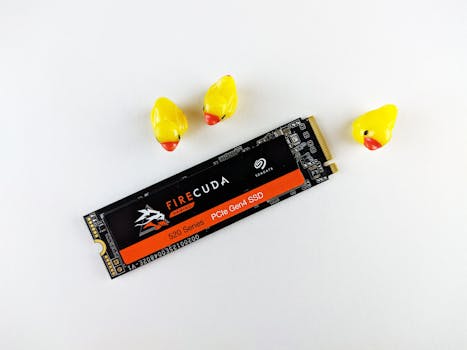 Photo: Andrey Matveev / Pexels
 Photo: Luis Quintero / Pexels