✓ Mesh WiFi uses multiple nodes to create a single, unified network.
✓ It eliminates dead zones and provides consistent speeds across large homes.
✓ Setup typically involves a main router and satellite units.
✓ Most mesh systems offer easy app-based configuration.
How It Works
1
Main Router Connection
The primary mesh node connects directly to your internet modem, acting as the central hub. It broadcasts the initial Wi-Fi signal across your home.
2
Satellite Node Placement
Additional satellite nodes are strategically placed around your home to extend the network's reach. They communicate with the main router and each other to form a seamless blanket of Wi-Fi.
3
Unified Network Creation
All nodes work together under a single network name (SSID), allowing your devices to automatically switch to the strongest signal as you move. This ensures uninterrupted connectivity and optimal performance.
4
Intelligent Traffic Management
Modern mesh systems intelligently manage network traffic and device connections. They optimize signal paths and prioritize bandwidth to provide the best possible experience for all connected devices.
Understanding Mesh WiFi Systems and Their Benefits
Photo: Amar Preciado / Pexels
Before diving into how to set up a mesh wifi network, it's crucial to grasp what mesh Wi-Fi is and why it's become the go-to solution for modern homes. Unlike traditional Wi-Fi extenders or repeaters that simply re-broadcast a weaker signal, a mesh Wi-Fi system creates a unified, intelligent network using multiple interconnected devices, often called 'nodes' or 'satellites.' The core idea is to blanket your entire home, regardless of size or architectural challenges, with a strong, consistent, and fast Wi-Fi signal. Imagine a network where every corner, every room, and even your backyard has the same reliable internet access as the room where your router sits. That's the promise of mesh Wi-Fi.
Traditional routers, even powerful ones, often struggle with range, especially in larger multi-story homes or those with thick walls. These limitations lead to frustrating 'dead zones' – areas where your Wi-Fi signal is weak, intermittent, or non-existent. Mesh systems tackle this problem head-on. A primary node connects to your modem, and then several satellite nodes are placed strategically around your home. These nodes communicate with each other, forming a cohesive network that intelligently routes traffic and ensures your devices are always connected to the strongest available signal. This 'hand-off' process is seamless, meaning you won't experience drops or slowdowns as you move from one part of your home to another.
Beyond simply extending coverage, mesh systems offer several significant benefits. They often come with user-friendly mobile apps that simplify setup, network management, and even parental controls. Many systems also include advanced security features, automatic firmware updates, and guest network capabilities, enhancing both convenience and safety. For households with numerous connected devices – smart TVs, smartphones, laptops, smart home gadgets – a mesh network provides the bandwidth and stability required to keep everything running smoothly without congestion. This eliminates buffering during streaming, lag during online gaming, and frustrating delays when trying to get work done remotely. Understanding these foundational aspects is the first step in appreciating the value and ease of learning how to choose the right mesh wifi system for your specific needs. The integrated nature of a mesh network means that instead of managing multiple SSIDs and passwords, you have one network name and one password for your entire home, significantly simplifying your digital life.
Pre-Setup Essentials: What You Need Before You Begin
Photo: Jaycee300s / Pexels
Before you embark on the journey of how to set up a mesh wifi network, a little preparation goes a long way. Gathering the necessary components and understanding a few key concepts will ensure a smooth and frustration-free installation process. First and foremost, you'll need your chosen mesh Wi-Fi system. This typically includes a main router unit and one or more satellite nodes, along with power adapters for each. Make sure all components are present and accounted for according to the manufacturer's packaging list. You'll also need an active internet connection from your Internet Service Provider (ISP). This usually means having a working modem (DSL, cable, or fiber optic) that provides internet access to your home. In some cases, your ISP might have provided a modem/router combo unit; you'll likely need to put this device into 'bridge mode' or disable its Wi-Fi capabilities to avoid network conflicts, a step we'll cover in more detail later.
Next, consider your existing network setup. If you have an old router, you'll be replacing its Wi-Fi functionality with the mesh system. It's often a good idea to temporarily disconnect any existing Wi-Fi routers to prevent interference during the initial setup. You'll also need a smartphone or tablet, as most modern mesh systems rely on a dedicated mobile app for configuration. Download the app from your device's app store (Apple App Store or Google Play Store) before you start. This app will guide you through the entire setup process, from connecting the main node to placing the satellites.
Gathering some basic information about your current network can also be helpful. Knowing your ISP's account details might be useful if you encounter any issues requiring their support. Additionally, having a pen and paper handy to jot down your new Wi-Fi network name (SSID) and password, as well as any administrative login details for the mesh system, is a good practice. Finally, identify potential locations for your satellite nodes. Think about areas in your home that currently have weak Wi-Fi, and plan to place nodes roughly equidistant from the main router and each other, ensuring they have a clear line of sight where possible. Avoiding obstructions like large appliances or metal objects will optimize performance. A little pre-planning here can save significant time and effort during the actual installation.
Step-by-Step Guide: How to Set Up a Mesh WiFi Network Effectively
Photo: Pixabay / Pexels
Now that you're prepared, let's walk through the detailed steps of how to set up a mesh wifi network. The process is generally straightforward, thanks to user-friendly apps, but following these guidelines will ensure optimal performance.
**Step 1: Unpack and Connect the Main Mesh Node.** Start by unpacking your mesh system. Locate the main router unit – it's usually marked as such or is the one with an Ethernet WAN port. Connect this main node directly to your internet modem using the included Ethernet cable. Plug one end into the modem's LAN port and the other into the WAN/Internet port on your main mesh node. Then, plug the main mesh node into a power outlet and turn it on. Wait for it to boot up, which may take a few minutes. Look for an indicator light that signals it's ready, usually solid white or green.
**Step 2: Download the App and Initial Configuration.** While the main node is booting, download the manufacturer's dedicated app to your smartphone or tablet. Open the app and follow the on-screen instructions. The app will typically prompt you to create an account or log in if you already have one. It will then guide you through detecting your main mesh node. You'll usually be asked to scan a QR code on the device or enter a serial number. This process establishes the initial connection between your phone and the mesh system.
**Step 3: Create Your New Wi-Fi Network.** The app will then ask you to create your new Wi-Fi network name (SSID) and password. Choose a strong, unique password. You might also be prompted to set an administrative password for the mesh system itself. Once these are set, the main node will broadcast your new Wi-Fi network. Connect your smartphone or tablet to this new Wi-Fi network to continue the setup process within the app.
**Step 4: Place and Connect Satellite Nodes.** This is a critical step for comprehensive coverage. Unpack your satellite nodes and plug them into power outlets in strategic locations around your home. The ideal placement is roughly halfway between the main node and the areas with weak signals, ensuring each satellite can still receive a strong signal from the main node or another satellite. Avoid placing them near large metal objects, microwaves, or cordless phones, which can cause interference. Once powered on, the app will guide you through adding each satellite node to your network. It might involve pressing a sync button on the satellite or simply waiting for the app to detect it. The app will often provide feedback on the signal strength between nodes, helping you adjust placement for optimal performance.
**Step 5: Test Your Network and Optimize Placement.** Once all nodes are connected and recognized by the app, walk around your home with your smartphone, checking Wi-Fi signal strength in various areas. Most mesh apps include a network test or signal strength indicator. If you find any remaining dead zones, try adjusting the placement of your satellite nodes slightly. Remember, a chain is only as strong as its weakest link, so ensure good signal quality between all nodes. For a truly robust setup, consider connecting wired devices to the Ethernet ports on your satellite nodes, if available, for maximum speed. This comprehensive approach ensures that every corner of your home benefits from high-speed, reliable internet, completing the successful setup of your mesh Wi-Fi network. For more advanced configurations, you might explore how to optimize your home network for smart devices after your mesh system is fully operational.
Troubleshooting Common Mesh WiFi Setup Issues and Optimization Tips
Photo: Pascal 📷 / Pexels
Even with the most user-friendly interfaces, learning how to set up a mesh wifi network can sometimes present minor hurdles. Knowing how to troubleshoot common issues and optimize your system can save you time and frustration. One of the most frequent problems is the main node not connecting to the internet. First, double-check all Ethernet cable connections between your modem and the mesh router. Ensure your modem is fully online and providing internet access by connecting a laptop directly to it if possible. If your ISP provided a modem/router combo, ensure its Wi-Fi is disabled or it's in 'bridge mode' to prevent IP address conflicts and double NAT issues.
Another common issue is satellite nodes failing to connect or showing a weak signal. This often points to poor placement. Try moving the satellite closer to the main node or another connected satellite. Ensure there are no major obstructions like thick concrete walls, large appliances, or aquariums directly between the nodes. Sometimes, simply restarting both the main node and the problematic satellite can resolve connection glitches. Your mesh app usually provides real-time signal strength indicators; use these to fine-tune placement until all nodes show a 'good' or 'excellent' connection.
If you're experiencing slow speeds despite a good signal, consider a few factors. First, check your internet plan's speed. Your mesh system can only deliver what your ISP provides. Next, ensure your mesh system's firmware is up to date through the app. Manufacturers frequently release updates that improve performance and stability. Look for a 'fast roaming' or 'band steering' feature in your app; these ensure your devices automatically connect to the best available band (2.4GHz or 5GHz) and node. For devices that demand high bandwidth, like gaming consoles or streaming boxes, use the Ethernet ports on your mesh nodes if available, as a wired connection is always more stable and faster than Wi-Fi.
Finally, remember to regularly check for firmware updates and utilize the features of your mesh system's app. Many apps offer parental controls, guest networks, device prioritization, and security scans. Take advantage of these to tailor your network to your family's needs and keep it secure. A well-maintained and optimized mesh network will provide years of seamless connectivity. Here are some quick tips:
* **Restart everything:** Modem, main mesh node, then satellites.
* **Check cables:** Ensure all Ethernet and power cables are securely connected.
* **Optimize placement:** Use the app's signal strength tool to find ideal spots for satellites.
* **Disable old Wi-Fi:** Put your old router in bridge mode or turn off its Wi-Fi.
* **Update firmware:** Keep your mesh system's software current for best performance.
* **Utilize Ethernet:** For stationary, high-bandwidth devices, use a wired connection to a nearby node.
* **Guest Network:** Create a separate network for guests to enhance security.
* **Device Prioritization:** Use QoS (Quality of Service) settings in the app to prioritize critical devices or applications.
Comparison
Feature
Mesh WiFi System
Traditional Router + Extender
Multiple Traditional Routers
Coverage
Whole Home (Seamless)
Extended (Patchy)
Multiple (Separate Networks)
Network Name (SSID)
Single, Unified
Multiple (Original + EXT)
Multiple
Roaming (Device Hand-off)
Seamless (Automatic)
Manual/Disruptive
Manual
Setup Complexity
Easy (App-guided)
Moderate (Configuration)
Complex (IP/Subnet Management)
Performance
Consistent, Fast
Degraded on Extender
Variable, Potential Interference
Management
Centralized App
Individual Web Interface
Individual Web Interface
Cost
Higher Initial
Lower Initial
Moderate
What Readers Say
★★★★★
"Setting up my mesh system was surprisingly easy thanks to this guide! No more dead spots in my home office, and my smart home devices are finally responsive everywhere. It took less than 30 minutes from unboxing to full coverage."
Sarah J. · Austin, TX
★★★★★
"I used to struggle with Wi-Fi in my basement, but after following these steps to set up a mesh wifi network, the signal is strong and stable. The app-based setup made it a breeze, and I love having one network name for everything."
Mark D. · Seattle, WA
★★★★★
"This article was a lifesaver! I was intimidated by the idea of installing a new network, but the clear instructions on how to set up a mesh wifi network made it simple. Now I get full 4K streaming even in my backyard."
Emily R. · Miami, FL
★★★★★
"The setup was mostly smooth, though I did have to move one of my satellite nodes a couple of times to get the best signal. The troubleshooting tips in the article were very helpful for optimizing placement. Definitely worth the effort for the improved coverage."
David L. · Chicago, IL
★★★★★
"As a remote worker, reliable Wi-Fi is essential. This guide on how to set up a mesh wifi network transformed my home internet from frustrating to flawless. My video calls are now crystal clear, no matter where I am in the house."
Jessica M. · Denver, CO
Frequently Asked Questions
What is the best placement for mesh Wi-Fi nodes?
Place the main node connected to your modem in a central location, ideally in an open space. Satellite nodes should be placed roughly halfway between the main node and areas needing coverage, ensuring each satellite still receives a strong signal from another node. Use your mesh app's signal strength indicator to find optimal spots, avoiding obstructions.
Do I need to turn off my old router's Wi-Fi when setting up a mesh system?
Yes, it's highly recommended. If your ISP provides a modem/router combo, you should ideally put it into 'bridge mode' or disable its Wi-Fi functionality. Running two Wi-Fi networks simultaneously can lead to interference, slower speeds, and network conflicts, preventing your mesh system from performing optimally.
How do I connect devices to my new mesh Wi-Fi network?
Once your mesh system is set up, all your devices (smartphones, laptops, smart TVs) will see a single Wi-Fi network name (SSID) that you created during the setup process. Simply select this network and enter the password you chose, just like connecting to any other Wi-Fi network. Your devices will automatically roam between nodes for the best signal.
Is a mesh Wi-Fi system worth the cost?
For larger homes, multi-story residences, or homes with many connected devices and Wi-Fi dead zones, a mesh Wi-Fi system is absolutely worth the investment. While often more expensive than a single router, it provides superior, consistent, and seamless coverage, eliminating frustration and significantly improving your overall internet experience across the entire property.
How does mesh Wi-Fi compare to traditional Wi-Fi extenders?
Mesh Wi-Fi is superior to traditional extenders. Extenders typically create a separate network (e.g., 'MyWiFi_EXT'), often halve bandwidth, and require manual switching between networks. Mesh systems create a single, unified network (one SSID), maintain full bandwidth through intelligent routing, and allow devices to seamlessly roam between nodes without interruption, offering a far better user experience.
Who should consider setting up a mesh Wi-Fi network?
Anyone experiencing Wi-Fi dead zones, slow speeds in certain areas of their home, or frequent buffering and drops should consider a mesh Wi-Fi network. It's ideal for large homes, multi-story residences, homes with thick walls, or households with numerous smart devices that require reliable, consistent internet access throughout the entire property.
Can a mesh Wi-Fi network improve my internet speed?
A mesh Wi-Fi network primarily improves *coverage* and *consistency* of your existing internet speed, rather than increasing the raw speed provided by your ISP. By eliminating dead zones and providing a strong signal everywhere, it ensures you can access your internet plan's maximum speed in more areas of your home, effectively making your internet *feel* faster and more reliable.
What are the future trends for mesh Wi-Fi technology?
Future trends for mesh Wi-Fi include wider adoption of Wi-Fi 7 for even faster speeds and lower latency, increased integration with smart home ecosystems, more advanced AI-driven network optimization for traffic management and security, and further simplification of setup and management through intuitive apps and voice commands. Expect more robust cybersecurity features and potentially even more compact, aesthetically pleasing node designs.
By following this comprehensive guide on how to set up a mesh wifi network, you're now equipped to enjoy a truly seamless, fast, and reliable internet experience across your entire home. Say goodbye to dead zones and hello to uninterrupted connectivity for all your devices.

 Photo: Amar Preciado / Pexels
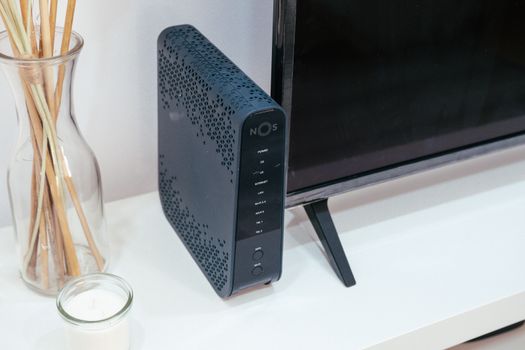 Photo: Jaycee300s / Pexels
 Photo: Pixabay / Pexels
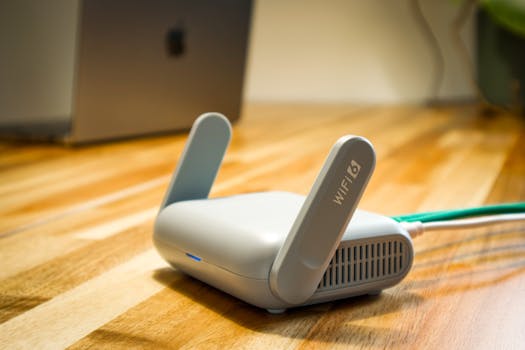 Photo: Pascal 📷 / Pexels