✓ Over 70% of slow internet issues can be resolved with basic troubleshooting.
✓ Router placement significantly impacts Wi-Fi signal strength and speed.
✓ Outdated hardware (modems, routers) can bottleneck even fast internet plans.
✓ Malware and background applications frequently consume significant bandwidth.
How It Works
1
Diagnose the Root Cause
Identify whether the issue is with your device, Wi-Fi network, or Internet Service Provider (ISP). Use speed tests and check multiple devices to narrow down the problem.
2
Optimize Your Local Network
Address common Wi-Fi problems like interference, outdated router firmware, and poor device placement. Consider upgrading components if they are bottlenecks.
3
Contact Your ISP
If local optimizations don't work, reach out to your ISP to check for outages, line issues, or plan limitations. They can often perform remote diagnostics.
4
Implement Advanced Solutions
Explore options like QoS settings, DNS changes, or even switching ISPs if consistent problems persist. These steps can provide significant performance gains.
Understanding the Culprits Behind Your Sluggish Connection
Photo: freestocks.org / Pexels
A slow internet connection can be one of the most frustrating experiences in the modern digital age. Whether you're trying to stream your favorite show, attend a crucial video conference, or simply browse the web, a lagging connection can bring productivity and entertainment to a grinding halt. Before diving into solutions, it's essential to understand the myriad of factors that can contribute to a sluggish internet experience. Pinpointing the exact cause is the first, and arguably most critical, step in effectively resolving the problem. This section will meticulously break down the primary culprits, helping you to accurately diagnose your specific situation.
One of the most common, yet often overlooked, reasons for slow internet is issues with your Internet Service Provider (ISP). While you might be paying for a specific speed, various factors can prevent you from consistently receiving it. These can range from general network congestion during peak hours, especially in densely populated areas, to localized outages or maintenance work in your region. Furthermore, if your ISP's infrastructure is outdated or overloaded, it can lead to throttling or inconsistent speeds. It's always a good idea to check your ISP's service status page or contact their support to rule out external network problems. Sometimes, the problem might even stem from your service plan itself – if you're on a basic plan with lower speeds and you have multiple devices actively streaming or downloading, you might simply be exceeding your allocated bandwidth. An internal link to understanding broadband speed requirements can help clarify this.
Beyond the ISP, your local network equipment plays a pivotal role in your internet speed. Your modem and router are the gateways between your home and the internet. An old, outdated modem might not be capable of handling the speeds your ISP provides, creating a bottleneck. Similarly, an inefficient or poorly placed Wi-Fi router can severely degrade your wireless signal. Factors like the age of the router, its firmware status, and its physical location within your home can all impact performance. For instance, placing your router behind thick walls, near large metal objects, or amidst other electronic devices can cause significant signal interference. Even the number of devices connected to your Wi-Fi network simultaneously can slow things down, as bandwidth is shared among them. Each device, from your smart TV to your smartphone, consumes a portion of the available bandwidth, and if too many are active at once, the collective demand can exceed the supply.
Software and device-specific issues are another significant category of problems. Your computer, smartphone, or tablet might be the source of the slowdown, not the internet itself. Malware, viruses, and adware can run in the background, consuming valuable system resources and bandwidth without your knowledge. Similarly, numerous background applications, automatic updates for operating systems or software, and cloud synchronization services can silently eat up your internet connection. Even an overloaded browser with too many tabs open or extensions installed can contribute to perceived slowness. Furthermore, outdated network drivers on your devices can hinder their ability to communicate efficiently with your router and modem. It’s crucial to consider the health and configuration of the individual devices you're using to access the internet. A comprehensive approach to troubleshooting requires looking at all these layers, from the global ISP network down to the local device settings. Understanding these common culprits is the first step in effectively learning how to fix slow internet connection issues and restore your digital experience to its optimal speed. This foundational knowledge empowers you to approach troubleshooting systematically, rather than just guessing at solutions. Recognizing the interplay between these different elements — ISP, home network hardware, and individual device software — is key to unlocking a truly fast and reliable connection. Without this diagnostic phase, you might be applying solutions to the wrong problem, leading to continued frustration and wasted effort. Therefore, take the time to consider each of these potential causes carefully before proceeding to the practical steps to resolve your slow internet. This analytical approach ensures that your efforts are targeted and effective, making the process of fixing your slow internet connection far more efficient and successful in the long run. By systematically ruling out each possibility, you'll eventually arrive at the root cause, paving the way for a definitive solution. This meticulous investigation sets the stage for implementing the right fixes, preventing future recurrences, and ultimately enjoying the seamless online experience you deserve. The complexity of modern networks means that a 'one size fits all' solution rarely exists, making this diagnostic phase indispensable. It's about empowering you to be your own network detective, armed with the knowledge to unmask the source of your digital woes. This deep dive into potential causes is fundamental to understanding how to fix slow internet connection problems effectively.
When faced with a frustratingly slow internet connection, the good news is that many issues can be resolved with some straightforward, quick troubleshooting steps. Often, the problem isn't complex, and a simple reboot or adjustment can make a world of difference. These first-line defenses are your initial go-to actions, designed to address the most common, easily rectifiable causes of internet sluggishness. Before you dive into more technical solutions or call your ISP, it's wise to run through this checklist.
**1. Restart Your Modem and Router:** This is the golden rule of internet troubleshooting for a reason – it works surprisingly often. Like any electronic device, modems and routers can become overwhelmed, accumulate temporary data, or encounter minor software glitches that degrade performance. A restart effectively clears their memory and allows them to re-establish a fresh connection with your ISP and your devices. To do this correctly, power off both your modem and router. Unplug them from the power outlet for at least 30 seconds to a full minute. This ensures a complete power cycle. Then, plug in the modem first and wait until all its indicator lights stabilize (usually 1-2 minutes). Once the modem is fully online, plug in your router and wait for its lights to stabilize as well. This sequence is important because your router needs to receive an internet signal from the modem before it can broadcast it.
**2. Check All Cables and Connections:** Loose or damaged cables are a surprisingly common cause of internet issues. Go through your setup and ensure that all Ethernet cables, power cords, and coaxial cables (for cable internet) are securely plugged into their respective ports on your modem, router, and wall outlets. Even a slightly dislodged cable can cause intermittent connectivity or reduced speeds. If you notice any frayed or kinked cables, especially Ethernet cables, consider replacing them. A damaged cable can introduce noise into the signal, leading to slower speeds or dropped connections. Ensure that the Ethernet cable connecting your modem to your router is also in good condition and firmly seated.
**3. Run a Speed Test:** Before and after making any changes, use an independent speed test website (like Speedtest.net or Fast.com) to measure your current internet speed. Do this on multiple devices (wired and wireless) to get an accurate baseline and to help identify if the problem is device-specific or network-wide. Compare these results to the speeds you're paying for from your ISP. If your speeds are consistently far below what you're subscribed to, even after reboots, it points towards an ISP issue or a major network bottleneck. Running multiple tests at different times of the day can also reveal if the slowdown is intermittent or constant.
**4. Clear Browser Cache and Cookies:** Your web browser stores temporary files (cache and cookies) to speed up future visits to websites. However, an overloaded or corrupted cache can sometimes slow down your browsing experience, making it seem like your internet is slow. Clearing these can often resolve perceived slowness, especially if the issue is limited to web browsing rather than streaming or downloading. The process varies slightly by browser, but generally, you can find this option in your browser's settings under 'Privacy and Security' or 'History'. While this won't impact your actual internet speed, it can significantly improve the responsiveness of your web browsing.
**5. Close Bandwidth-Hogging Applications:** Many applications run in the background, consuming bandwidth without your immediate knowledge. This includes cloud storage services (Dropbox, Google Drive, OneDrive), automatic software updates (Windows Update, macOS updates, game client updates), and peer-to-peer file-sharing applications. Temporarily closing these applications or pausing their synchronization/download activities can free up significant bandwidth and instantly improve your internet speed for other tasks. On Windows, you can use Task Manager (Ctrl+Shift+Esc) to see network usage; on macOS, Activity Monitor (Command+Space, type Activity Monitor) provides similar insights. Identifying and managing these applications is a simple yet effective way to reclaim lost speed.
**6. Check for Malware and Viruses:** Malicious software can run stealthily in the background, consuming system resources and bandwidth to send data, display ads, or participate in botnets. Perform a full system scan with reputable antivirus and anti-malware software. Keeping your security software updated and running regular scans is crucial for maintaining both your device's performance and your internet speed. A clean system ensures that your bandwidth is being used for your intended purposes and not hijacked by unwanted programs.
By systematically working through these quick fixes, you can often identify and resolve the most common causes of a slow internet connection without needing to delve into more complex solutions. These steps are designed to be low-effort and high-impact, providing immediate relief in many scenarios and offering clear diagnostic clues if the problem persists. This methodical approach is a cornerstone of learning how to fix slow internet connection issues effectively and efficiently. Remember, patience and observation are your best tools in this initial troubleshooting phase.
Optimizing Your Home Network for Peak Performance
Photo: Pascal 📷 / Pexels
Once you've exhausted the quick troubleshooting steps and your internet connection is still lagging, it's time to delve deeper into your home network configuration. Optimizing your Wi-Fi and wired connections can unlock significant speed improvements and ensure a more stable experience. Many users overlook these critical aspects, assuming their equipment is working optimally right out of the box. However, a few strategic adjustments can transform your network's performance and address lingering issues with how to fix slow internet connection.
**1. Router Placement is Key:** The physical location of your Wi-Fi router is paramount. Wi-Fi signals degrade with distance and are absorbed or blocked by obstacles. Place your router in a central location in your home, ideally in an open space, away from thick walls, large metal objects (like refrigerators or filing cabinets), and other electronic devices that emit electromagnetic interference (like microwaves, cordless phones, or baby monitors). Elevating the router can also help, as Wi-Fi signals often spread downwards. A strategically placed router can drastically improve signal strength and coverage throughout your home, directly translating to faster, more reliable wireless speeds. Avoid placing it in a closet, behind a TV, or in a basement corner.
**2. Update Router Firmware:** Router manufacturers frequently release firmware updates that improve performance, add new features, and patch security vulnerabilities. Outdated firmware can lead to inefficiencies and slow speeds. Access your router's administration interface (usually by typing its IP address, like 192.168.1.1, into a web browser), navigate to the firmware update section, and check for available updates. Always follow the manufacturer's instructions carefully when updating firmware to avoid bricking your device. This simple maintenance step can often resolve mysterious slowdowns and improve overall network stability.
**3. Optimize Wi-Fi Channels and Frequencies:** Wi-Fi operates on specific channels. If your neighbors are using the same channel, it can lead to signal interference and slower speeds. Most modern routers offer both 2.4 GHz and 5 GHz bands. The 2.4 GHz band offers wider coverage but slower speeds and is more susceptible to interference. The 5 GHz band provides faster speeds but has a shorter range and struggles more with obstacles. Use a Wi-Fi analyzer app on your smartphone or computer to identify congested channels in your area and manually switch your router to a less crowded one. For the 2.4 GHz band, channels 1, 6, and 11 are non-overlapping and generally recommended. For 5 GHz, there are many more non-overlapping channels. Consider using a dual-band router and connecting newer devices to the 5 GHz band for higher speeds, while older or farther devices can use 2.4 GHz for better range.
**4. Implement Quality of Service (QoS) Settings:** Many routers include Quality of Service (QoS) settings, which allow you to prioritize certain types of traffic or specific devices over others. For example, you can set your streaming service or online gaming console to have higher priority, ensuring smooth performance even when other devices are active. Conversely, you can deprioritize large downloads or background updates. Properly configuring QoS can prevent one bandwidth-hungry activity from monopolizing your connection, leading to a more consistent experience for critical tasks. This is particularly useful in households with multiple users and diverse internet usage patterns.
**5. Secure Your Wi-Fi Network:** An unsecured or poorly secured Wi-Fi network is an open invitation for freeloaders to connect and steal your bandwidth. Ensure your Wi-Fi network is protected with a strong password using WPA2 or WPA3 encryption. Regularly change your Wi-Fi password, especially if you've given it out to many guests. More devices connected to your network, authorized or not, means less bandwidth for you. Check your router's connected devices list to identify any unauthorized users and block them if necessary. A secure network is a fast network.
**6. Consider a Mesh Wi-Fi System or Wi-Fi Extenders:** If you live in a large home or one with many dead zones, a single router might not be sufficient. Mesh Wi-Fi systems use multiple access points to create a seamless, strong Wi-Fi network throughout your entire property, eliminating dead spots and improving overall speed and reliability. Wi-Fi extenders or powerline adapters can also help bridge gaps, though mesh systems generally offer superior performance and ease of use. These solutions are particularly effective when facing signal degradation due to distance or structural impediments.
**7. Upgrade Your Hardware:** If your modem and router are several years old, they might not be capable of supporting modern internet speeds or efficient wireless protocols (like Wi-Fi 6). Technology evolves rapidly, and older equipment can become a significant bottleneck. Investing in a new, high-performance modem and router that supports your ISP's advertised speeds and the latest Wi-Fi standards can provide a substantial boost. While an upfront cost, this upgrade often pays dividends in terms of speed, reliability, and future-proofing your network. Look for devices that match your internet plan's speed capabilities to avoid creating new bottlenecks. These optimizations, ranging from simple placement changes to significant hardware upgrades, are crucial steps in learning how to fix slow internet connection issues and building a robust, high-performing home network that can keep up with your digital demands.
When to Call the Pros: Engaging Your Internet Service Provider
Photo: 112 Uttar Pradesh / Pexels
You've diligently worked through the quick fixes and optimized your home network, yet your internet connection remains stubbornly slow. At this juncture, it's highly probable that the problem lies beyond your immediate control and resides within your Internet Service Provider's (ISP) domain. Knowing when and how to effectively engage your ISP is a crucial step in understanding how to fix slow internet connection issues that originate upstream from your home. Don't hesitate to reach out to them; after all, you're paying for a service, and it's their responsibility to deliver it.
**1. Gather Your Information First:** Before making that call, arm yourself with data. Have your account number ready, and be prepared to articulate the problem clearly. Crucially, have the results of your speed tests (taken both wired and wirelessly, at different times of the day, and after rebooting your equipment) at hand. Note down the dates and times of these tests, and compare them against the speeds you're paying for. Document any troubleshooting steps you've already taken (rebooting modem/router, checking cables, optimizing Wi-Fi channels). The more information you provide, the faster the ISP representative can understand your situation and assist you. This preparation saves time and demonstrates that you've done your due diligence.
**2. Check for Outages and Scheduled Maintenance:** Many ISPs have dedicated status pages on their websites or mobile apps where you can check for known outages or scheduled maintenance in your area. This should be your first point of contact before calling. If there's a widespread issue, you'll know that the problem isn't unique to your home, and you can simply wait for the service to be restored. This also prevents you from spending time on the phone for an issue that's already being addressed. If you don't see any reported issues, then proceed to contact support.
**3. Contact Technical Support and Be Specific:** When you call, clearly explain the symptoms: "My internet speed is consistently X Mbps, but I'm subscribed to Y Mbps. I've rebooted my modem and router, checked all cables, and run speed tests from multiple devices, both wired and wireless." Mention any specific times when the slowdown is most noticeable. The representative will likely guide you through some basic troubleshooting steps again, even if you've already done them. Be patient and cooperative. They might ask you to perform a direct connection test (connecting a computer directly to the modem with an Ethernet cable) to rule out your router as the source of the problem. This helps them determine if the issue is with the incoming line or their network.
**4. Inquire About Line Quality and Provisioning:** Ask the ISP to check the signal strength and quality coming into your modem. They can often perform remote diagnostics to see if there are any signal degradation issues on their end. Also, confirm that your modem is correctly provisioned for your subscribed speed plan. Sometimes, especially after a plan upgrade, the modem might not be correctly configured to receive the full bandwidth. This is a common oversight that can easily be corrected by the ISP technician.
**5. Request a Technician Visit:** If remote diagnostics don't reveal any issues and your speeds remain consistently below your subscribed plan, it's time to request a technician visit. An on-site technician can inspect the physical lines leading to your home, check the connections at the pole or junction box, and test the signal directly at the point of entry. They might identify damaged wiring, corroded connectors, or issues with neighborhood infrastructure that remote troubleshooting cannot detect. Be prepared for a potential service fee if the issue is found to be with your internal wiring or equipment (though some ISPs waive fees if the problem is on their side).
**6. Consider a Modem Swap:** If your modem is older or has been identified as potentially faulty by the ISP, they might offer to replace it. Even if it's not explicitly faulty, an upgrade to a newer, more efficient model provided by your ISP can sometimes resolve subtle performance issues or compatibility problems. Ensure the replacement modem is compatible with your current speed tier and ideally supports future upgrades.
**7. Explore Alternative ISPs (If Available):** If you've exhausted all troubleshooting steps with your current ISP, had technicians visit multiple times without a lasting resolution, and your service remains subpar, it might be time to explore other options. Check if competing ISPs offer service in your area and compare their plans, speeds, and customer reviews. Sometimes, the underlying infrastructure of one provider might simply be better suited for your location or usage demands. This is a last resort but an important consideration if you cannot get satisfactory service after extensive efforts. Remember, a persistent slow connection, despite your best efforts, points strongly to a problem outside your immediate control, making professional intervention from your ISP essential. Knowing when to escalate and how to communicate effectively will greatly enhance your chances of resolving the issue and getting the internet speed you pay for. This proactive approach is key to mastering how to fix slow internet connection issues when they extend beyond your home network. Don't be afraid to be persistent and advocate for the service you deserve.
Advanced Tweaks & Common Mistakes to Avoid for Faster Internet
Even after addressing basic troubleshooting and optimizing your network, there are still advanced tweaks you can implement to squeeze every last drop of speed from your internet connection. Equally important is being aware of common mistakes that can inadvertently throttle your performance. Mastering these aspects is the final frontier in truly understanding how to fix slow internet connection problems and maintaining peak network health.
**Advanced Tweaks for Maximum Speed:**
* **Change Your DNS Server:** Your Domain Name System (DNS) server translates website names (like google.com) into IP addresses that computers understand. Your ISP automatically assigns DNS servers, but they aren't always the fastest or most reliable. Switching to a public DNS server, such as Google DNS (8.8.8.8 and 8.8.4.4) or Cloudflare DNS (1.1.1.1 and 1.0.0.1), can sometimes speed up website loading times and improve overall responsiveness. This change is typically made in your router's settings, affecting all connected devices, or on individual devices for specific benefits. Faster DNS resolution means your browser spends less time waiting to find website servers.
* **Consider a Powerline Adapter or MoCA Adapter:** If Wi-Fi is unreliable in certain areas of your home and running Ethernet cables isn't feasible, powerline adapters use your home's electrical wiring to transmit network data. MoCA (Multimedia over Coax Alliance) adapters use your existing coaxial cable wiring (like for cable TV) to create a high-speed Ethernet-like connection. Both can provide much more stable and faster connections than Wi-Fi extenders, especially for stationary devices like smart TVs or desktop PCs in distant rooms. These are excellent alternatives for bridging network gaps without extensive rewiring.
* **Optimize Your Operating System's Network Settings:** Both Windows and macOS have various network settings that can be tweaked. For Windows users, ensuring 'Metered Connection' is off (unless you have a data cap) and checking for network adapter driver updates can help. Disabling features like 'Receive Side Scaling' (RSS) or 'Large Send Offload' (LSO) in advanced adapter settings can sometimes resolve specific performance bottlenecks, though this is for experienced users. macOS users should ensure their 'Network' preferences are correctly configured and that no VPNs or proxies are unnecessarily active.
* **Invest in a Gigabit Ethernet Switch:** If you have multiple wired devices and your router only has a few Ethernet ports, don't daisy-chain devices. A dedicated Gigabit Ethernet switch provides multiple high-speed ports, ensuring each wired device gets its full bandwidth without contention. This is crucial for home offices, gaming setups, or media centers where consistent, fast wired connections are paramount.
* **Regularly Clean Up Your Devices:** Beyond checking for malware, regularly uninstall unused programs, delete temporary files, and perform disk cleanup on your computers. A cluttered, slow computer can make your internet *feel* slow, even if the connection itself is fine. Keeping your devices lean and efficient ensures they can fully utilize the internet speed available.
**Common Mistakes to Avoid:**
1. **Ignoring Router Age:** Using a router that's 5+ years old is a major mistake. Technology advances rapidly, and older routers often lack support for modern Wi-Fi standards (like Wi-Fi 5 or Wi-Fi 6), have less powerful processors, and cannot handle the demands of multiple devices streaming 4K content simultaneously. Upgrade your router to match your internet plan and current usage.
2. **Overlooking Background Processes:** Failing to identify and manage background applications, automatic updates, and cloud sync services that consume bandwidth. Always check your task manager or activity monitor if you suspect a slowdown.
3. **Not Using Wired Connections Where Possible:** For stationary devices like desktop PCs, gaming consoles, and smart TVs, a direct Ethernet connection is almost always superior to Wi-Fi in terms of speed, stability, and latency. Relying solely on Wi-Fi for all devices, especially bandwidth-intensive ones, is a common error.
4. **Inadequate Security:** An open Wi-Fi network or one secured with an easily guessable password invites unauthorized users, who will unknowingly (or knowingly) steal your bandwidth and slow down your connection. Always use strong WPA2/WPA3 encryption and a complex password.
5. **Ignoring ISP Speed Plan Limits:** Expecting gigabit speeds on a 100 Mbps plan is unrealistic. Always know what speed you're paying for and manage your expectations accordingly. If your usage has increased, consider upgrading your plan before blaming your equipment.
6. **Placing the Router Poorly:** As mentioned, putting your router in a cabinet, basement, or corner of your house severely impacts Wi-Fi range and speed. This is a fundamental mistake that can cripple even the best internet plans.
By implementing these advanced tweaks and diligently avoiding these common pitfalls, you'll not only learn how to fix slow internet connection issues but also empower yourself to maintain a consistently fast and reliable home network. It's a continuous process of optimization and awareness, ensuring your digital life runs as smoothly as possible. The cumulative effect of these small adjustments can lead to a significant improvement in your overall online experience. Taking control of these elements transforms you from a passive user to an active manager of your network, guaranteeing you get the most out of your internet service.
Comparison
Feature
Best Option
Alternative 1
Alternative 2
Wi-Fi Coverage
Mesh Wi-Fi System
Wi-Fi Extender
Better Router Placement
Wired Speed/Stability
Direct Ethernet
MoCA Adapter
Powerline Adapter
Troubleshooting Ease
Router Reboot
ISP Call
Firmware Update
Cost-Effectiveness
Optimizing Settings
New Router
New ISP Plan
What Readers Say
★★★★★
"My internet was constantly buffering, making remote work impossible. Following this guide's advice on router placement and updating my firmware instantly boosted my speeds by 50%! I no longer dread video calls."
Sarah J. · Austin, TX
★★★★★
"I thought I needed a new ISP, but the section on identifying bandwidth hogs was a game-changer. I found several background apps eating my data. Now my streaming is smooth, and downloads are fast."
Mark D. · Miami, FL
★★★★★
"This article provided practical steps. After changing my DNS server and checking for malware, my web pages load noticeably faster. It's like having a brand new internet connection without the cost."
Emily R. · Denver, CO
★★★★★
"The guide was mostly helpful, especially the tips on Wi-Fi channels. While it didn't solve my issue entirely, it gave me enough information to have a productive conversation with my ISP, who eventually found a line issue."
David L. · Seattle, WA
★★★★★
"As a gamer, low latency is critical. The advanced tweaks on QoS settings and wired connections drastically improved my online gaming experience. No more lag spikes during crucial moments!"
Jessica M. · Chicago, IL
Frequently Asked Questions
What is the most common reason for a slow internet connection?
The most common reason for a slow internet connection is often a combination of factors, including an overloaded Wi-Fi network with too many devices, poor router placement, outdated router firmware, or temporary glitches that can be resolved with a simple modem and router restart. ISP-side issues like network congestion or outages are also frequent culprits.
Will upgrading my internet plan automatically fix my slow internet?
Not necessarily. While a higher-speed plan provides more bandwidth, if your slow internet is due to outdated equipment (modem/router), poor Wi-Fi coverage, or device-specific issues like malware, upgrading your plan won't resolve these underlying problems. It's crucial to troubleshoot your local network first before considering a plan upgrade.
How do I perform a proper modem and router restart?
To perform a proper restart, first, unplug both your modem and router from their power outlets. Wait at least 30-60 seconds for all power to drain. Then, plug in the modem first and wait for all its indicator lights to stabilize (usually 1-2 minutes). Once the modem is fully online, plug in your router and wait for its lights to stabilize as well. This ensures a clean connection reset.
Is a wired (Ethernet) connection always faster than Wi-Fi?
Generally, yes. A wired Ethernet connection provides a more stable, faster, and lower-latency connection compared to Wi-Fi. It avoids interference, signal degradation over distance, and bandwidth sharing issues inherent in wireless networks, making it ideal for devices like desktop PCs, gaming consoles, and smart TVs that require consistent performance.
Should I switch to a different ISP if my internet is consistently slow?
Switching ISPs should be a last resort. Before doing so, ensure you've exhausted all troubleshooting steps on your end, contacted your current ISP multiple times, and had a technician visit. If, after all these efforts, your service remains consistently below advertised speeds or unreliable, then exploring alternative ISPs in your area is a reasonable next step.
Who should use this guide on how to fix slow internet connection?
This guide is for anyone experiencing frustratingly slow internet speeds, whether you're a casual browser, a remote worker, an online gamer, or a streaming enthusiast. It's designed to help individuals and families diagnose and resolve common internet performance issues in their home or small office networks, regardless of their technical expertise.
Are there any risks to changing my router settings or DNS server?
Changing router settings or DNS servers generally carries minimal risk, but it's important to proceed carefully. Always note down original settings before making changes so you can revert if needed. Incorrect router settings could temporarily disrupt your network, but a factory reset can usually fix it. Changing DNS is safe and reversible, often improving speed and security.
What are the future trends in improving internet speed and reliability?
Future trends include wider adoption of Wi-Fi 6E and Wi-Fi 7 for even faster wireless speeds and lower latency, the expansion of 5G home internet as a viable alternative to traditional broadband, and the continued rollout of fiber optic networks directly to homes. These technologies promise to deliver unprecedented speeds and reliability, making slow internet a rarer occurrence.
Don't let a sluggish connection hold you back any longer. By applying the comprehensive strategies outlined in this guide, you now have the power to diagnose and effectively fix slow internet connection issues, transforming your digital experience. Take control of your home network today and enjoy the blazing-fast internet speeds you deserve.

 Photo: freestocks.org / Pexels
 Photo: panumas nikhomkhai / Pexels
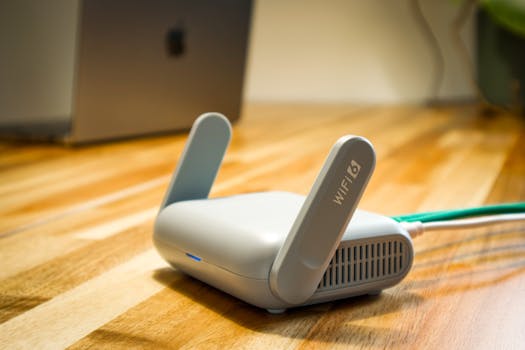 Photo: Pascal 📷 / Pexels
 Photo: 112 Uttar Pradesh / Pexels