
How to Fix Slow Internet Connection: Your Ultimate Guide
fix slow internet connection

How to Fix Slow Internet Connection: Your Ultimate Guide

Unlock the secrets to a faster, more reliable internet connection and banish frustrating lag forever.

Get Started Now

Key Takeaways

  • ✓ Around 70% of internet speed issues can be resolved with simple troubleshooting steps.
  • ✓ Your router's placement significantly impacts WiFi signal strength and speed.
  • ✓ Outdated hardware (modems, routers) can bottleneck even fast internet plans.
  • ✓ Many speed problems stem from network congestion, either local or ISP-related.

How It Works

1
Identify the Problem Source

Determine if the slowness is device-specific, network-wide, or originating from your Internet Service Provider (ISP). This initial diagnosis guides your troubleshooting efforts.

2
Optimize Your Home Network

Address common issues like router placement, outdated firmware, and Wi-Fi interference. These adjustments often yield significant speed improvements.

3
Evaluate Hardware and Software

Check your modem, router, and connected devices for age or performance issues. Ensure your operating system and browsers are up-to-date and free of malware.

4
Contact Your ISP if Needed

If self-troubleshooting doesn't resolve the issue, prepare to contact your ISP with detailed information. They can perform remote diagnostics and address line issues.

Understanding the Roots of Your Slow Internet Connection
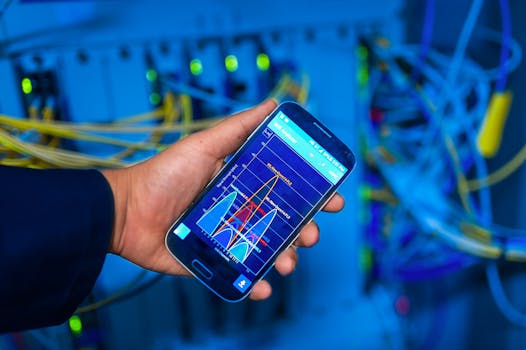
Hand holding smartphone displaying network analysis in high-tech server environment. Photo: panumas nikhomkhai / Pexels
A sluggish internet connection can transform daily tasks into infuriating ordeals, from endlessly buffering videos to glacial page load times. Before diving into solutions for how to fix slow internet connection, it's crucial to understand the myriad factors that can contribute to this digital drag. Pinpointing the root cause is half the battle, enabling you to apply targeted and effective remedies. The problem isn't always your ISP; often, it lies within your own home network or even your devices. One of the most common culprits is network congestion, which can manifest in several ways. Locally, too many devices simultaneously streaming, downloading, or gaming can overwhelm your router's capacity. Think of your internet connection as a highway; if every lane is packed, traffic slows down. Similarly, if your neighbors are using the same Wi-Fi channels, especially in densely populated areas, signal interference can degrade your connection. Your router's location is another critical, yet often overlooked, factor. Walls, floors, and large appliances like refrigerators or microwaves can act as formidable barriers to Wi-Fi signals, significantly weakening their strength and reducing effective speeds. Placing your router in a central, open location can dramatically improve coverage and performance. Outdated hardware is another frequent contributor to internet woes. An old modem or router might not be capable of handling the speeds your ISP provides, effectively creating a bottleneck. Even if you're paying for a gigabit connection, an 8-year-old router designed for 100 Mbps will limit your actual speed to that lower threshold. Firmware, the software embedded in your router, also plays a vital role. Outdated firmware can contain bugs, security vulnerabilities, and lack optimizations that newer versions offer. Regularly checking for and applying firmware updates is a simple yet powerful maintenance step. Software-related issues on your devices can also mimic a slow internet connection. Malware, viruses, or even too many browser extensions can consume significant system resources and bandwidth, making your internet *feel* slow, even if the actual connection speed is fine. Background applications on your computer or smartphone, often silently syncing data or downloading updates, can also hog bandwidth. Furthermore, your ISP itself can be a source of problems. They might be experiencing network outages, performing maintenance, or you might simply be on a plan that no longer meets your usage demands. Understanding these potential pitfalls is the first step toward reclaiming your fast internet experience. For more in-depth network troubleshooting, explore advanced network diagnostics.

Optimizing Your Home Network: The First Line of Defense
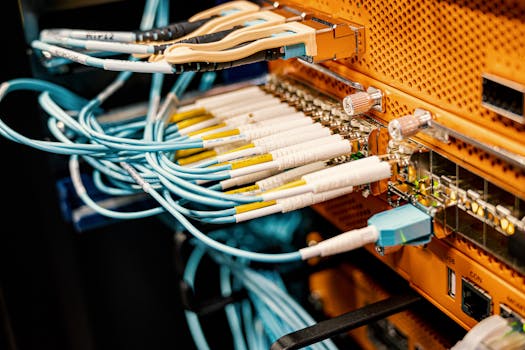
Modern hardware and structured cabling system with patch cords inserted into patch panel outlets Photo: Brett Sayles / Pexels
Once you understand the potential causes, the next logical step in how to fix slow internet connection is to systematically optimize your home network. Many common speed issues can be resolved without ever needing to call your internet service provider. These adjustments focus on ensuring your internal network is running as efficiently as possible, maximizing the speed delivered by your modem. Start with the simplest yet most effective solution: a power cycle of your modem and router. Unplug both devices from their power source, wait for at least 30 seconds (some recommend a full minute or two), and then plug the modem back in first. Wait for all its indicator lights to stabilize before plugging in your router. This process, often referred to as 'rebooting,' clears temporary glitches, refreshes the connection with your ISP, and can often resolve minor performance hiccups. It’s the digital equivalent of 'turning it off and on again.' Next, critically evaluate your router's placement. As mentioned, physical obstructions are major Wi-Fi signal killers. Try to position your router in a central location within your home, elevated if possible, and away from thick walls, large metal objects, and other electronics that emit electromagnetic interference (like microwaves, cordless phones, and baby monitors). If your home is large or has multiple floors, a single router might not provide adequate coverage. In such cases, consider investing in a mesh Wi-Fi system or Wi-Fi extenders to broaden your network's reach and eliminate dead zones. These solutions create a more robust and consistent signal throughout your property. Another crucial aspect is your Wi-Fi channels. Routers broadcast on specific channels, and if multiple networks in your vicinity are using the same channel, it leads to interference and slowdowns. Most modern routers offer both 2.4 GHz and 5 GHz bands. The 2.4 GHz band has a wider range and better penetration through obstacles but is more susceptible to interference and offers slower speeds. The 5 GHz band provides faster speeds and less interference but has a shorter range. Use a Wi-Fi analyzer app (available for smartphones) to identify congested channels in your area and manually switch your router to a less crowded one, especially for the 2.4 GHz band. For the 5 GHz band, ensure you're using DFS (Dynamic Frequency Selection) channels if available, as they offer even more options. Finally, secure your Wi-Fi network. An unsecured network allows anyone to connect, potentially leeching your bandwidth and slowing you down. Use strong WPA2 or WPA3 encryption and a robust password. Regularly review the list of connected devices in your router's administration panel to identify any unauthorized users. By meticulously addressing these network optimization strategies, you'll lay a strong foundation for a faster and more reliable internet connection.

Upgrading Hardware and Software for Peak Performance
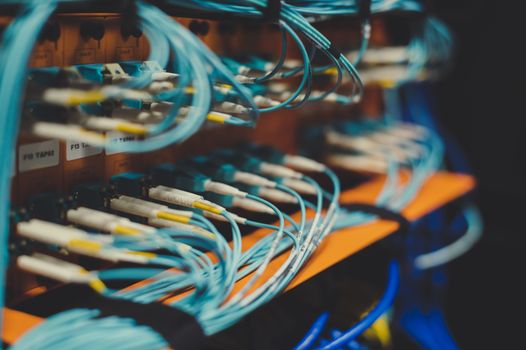
Closeup of many cables with blue wires plugged in modern switch with similar adapters on blurred background in modern studio Photo: Brett Sayles / Pexels
Even with optimal network settings, your internet connection can still feel sluggish if your hardware or software isn't up to par. Addressing these components is a vital step in how to fix slow internet connection, ensuring that your entire digital ecosystem is working efficiently. This involves looking beyond the router and considering the devices that connect to it, as well as the underlying infrastructure. Let's start with your core internet hardware: the modem and router. If you're renting equipment from your ISP, it might be older or less powerful than what's available on the market. Older DOCSIS 2.0 or 3.0 modems, for example, simply cannot handle the multi-gigabit speeds offered by modern fiber or cable plans. Upgrading to a DOCSIS 3.1 modem for cable internet, or ensuring your fiber optic terminal is current, can unlock the full potential of your paid plan. Similarly, an ancient router might not support modern Wi-Fi standards like Wi-Fi 5 (802.11ac) or Wi-Fi 6 (802.11ax), which offer significantly higher speeds and better efficiency. Investing in a new, high-performance router, especially one with multiple antennas and beamforming technology, can make a noticeable difference, particularly in larger homes or with many connected devices. Beyond the network infrastructure, your individual devices play a significant role. An old laptop with a slow hard drive or insufficient RAM can make web browsing feel agonizingly slow, even if your internet connection is blazing fast. Ensure your operating system (Windows, macOS, Linux) is up-to-date, as these updates often include performance improvements and critical security patches. Similarly, keep your web browsers (Chrome, Firefox, Edge, Safari) updated. Browser updates frequently optimize rendering engines, improve JavaScript execution, and patch memory leaks that can otherwise slow down your browsing experience. Consider using a lightweight browser if your device is older. Malware and viruses are stealthy bandwidth and resource hogs. Regularly scan your devices with reputable antivirus and anti-malware software. Adware and browser hijackers, in particular, can inject unwanted ads and redirect your traffic, consuming bandwidth and slowing down page loads. Review your browser extensions and remove any that are unnecessary or suspicious, as they can also contribute to performance degradation. Many extensions run in the background, constantly consuming resources. Finally, consider your Ethernet cables. While Wi-Fi is convenient, a wired connection is almost always faster and more stable. If you have devices that require maximum speed and reliability (like a gaming PC or a streaming media box), connect them directly to your router with a Cat5e or Cat6 Ethernet cable. Ensure your cables aren't damaged or excessively long, as this can introduce signal degradation. By addressing both your core network hardware and the individual devices connected to it, you'll create a more robust and faster internet experience. For further optimization, consider exploring advanced router settings.

Advanced Troubleshooting and Common Pitfalls to Avoid

Server with electronic switches and connectors with yellow and green wires plugged in plastic device in operating room on black background Photo: Brett Sayles / Pexels
Even after optimizing your network and upgrading hardware, some stubborn slow internet issues can persist. This section delves into advanced troubleshooting techniques and highlights common pitfalls to avoid, ensuring you have a comprehensive strategy for how to fix slow internet connection. **Advanced Troubleshooting Steps:** * **Check for Bandwidth Hogs:** Use your router's administration panel (if it has the feature) or third-party software to monitor which devices are consuming the most bandwidth. Sometimes, a single device performing a large update or backup can monopolize your connection. You might be able to prioritize traffic for certain devices or applications using Quality of Service (QoS) settings in your router. * **DNS Server Change:** Your Domain Name System (DNS) server translates website names (like google.com) into IP addresses. Your ISP assigns a default DNS server, but sometimes these can be slow or unreliable. Switching to a public DNS server like Google DNS (8.8.8.8 and 8.8.4.4) or Cloudflare (1.1.1.1 and 1.0.0.1) can sometimes speed up page loading times. * **Test in Safe Mode with Networking:** If you suspect a software issue on your computer, boot into Safe Mode with Networking. If your internet speed improves significantly, it indicates that a program or driver is interfering with your normal operation. You can then systematically disable startup programs to identify the culprit. * **Firmware Updates (Router/Modem):** We mentioned this earlier, but it bears repeating. Router manufacturers frequently release firmware updates that improve performance, add features, and patch security vulnerabilities. Check your router manufacturer's website for the latest firmware and follow their instructions for updating it carefully. * **Call Your ISP:** If all else fails, it's time to contact your Internet Service Provider. Be prepared with details: the speed test results you've run (both wired and wireless), the troubleshooting steps you've already taken, and any patterns you've observed (e.g., slow only at certain times of day). They can perform line diagnostics, check for outages in your area, or even dispatch a technician. **Common Pitfalls to Avoid:** * **Ignoring Router Placement:** Don't tuck your router away in a closet or behind a TV. It needs open space to broadcast its signal effectively. * **Using Outdated Wi-Fi Standards:** If your devices support Wi-Fi 5 or Wi-Fi 6, ensure your router does too. Don't limit your speeds with an older 802.11n router. * **Overlooking Cable Quality:** Damaged or low-quality Ethernet cables can degrade wired connections. Ensure you're using Cat5e or Cat6 for optimal performance. * **Not Regularly Rebooting:** A simple reboot of your modem and router once a month can prevent many minor issues from escalating. * **Not Testing Wired vs. Wireless:** Always test your internet speed with a wired connection first to rule out Wi-Fi as the source of the problem. This provides a baseline for your ISP speed. * **Ignoring Background Processes:** Many applications run in the background, consuming bandwidth. Check task manager (Windows) or Activity Monitor (macOS) to identify and close unnecessary processes. By proactively addressing these advanced considerations and avoiding common mistakes, you can maintain a consistently fast and reliable internet connection, turning your digital frustrations into a thing of the past.

Comparison

Fix TypeBest for Quick FixesBest for Long-Term ImprovementBest for Specific IssuesCost
Router/Modem RebootMinor GlitchesFree
Router PlacementPoor Wi-Fi SignalFree
Hardware UpgradeOutdated Equipment$$$
Software OptimizationDevice Slowness, MalwareFree/Low
ISP ContactLine Issues, OutagesFree (with plan)

What Readers Say

"My internet was constantly buffering. Following the advice on router placement and firmware updates from this guide on how to fix slow internet connection made a HUGE difference. Streaming is smooth again!"

Sarah J. · Austin, TX

"I thought I needed a new ISP. Turns out my old modem was the bottleneck. This article helped me diagnose and fix slow internet connection by upgrading my hardware. Now my speeds are exactly what I pay for."

Mark D. · Seattle, WA

"The tip about checking for bandwidth-hogging apps was a lifesaver. My son's gaming updates were secretly slowing everything down. After adjusting settings, our whole family noticed the improvement."

Emily R. · Chicago, IL

"Most of these tips for how to fix slow internet connection were helpful, especially the DNS change. I still have occasional slowdowns during peak hours, but it's significantly better than before."

David K. · Miami, FL

"As a remote worker, a stable connection is vital. This guide walked me through every step to fix slow internet connection, from checking cables to optimizing Wi-Fi channels. My video calls are now crystal clear."

Jessica L. · Denver, CO

Frequently Asked Questions

What's the first thing I should do when my internet is slow?

The absolute first step is to power cycle your modem and router. Unplug both devices from power, wait 30-60 seconds, then plug the modem back in. Once its lights are stable, plug the router back in. This simple reboot often resolves temporary glitches and refreshes your connection.

Could my old router be causing my slow internet?

Yes, absolutely. An outdated router might not support modern Wi-Fi standards (like Wi-Fi 5 or Wi-Fi 6) or be capable of handling the speeds your ISP provides. It can act as a bottleneck, limiting your actual internet speed regardless of your service plan. Upgrading your router is a common solution.

How can I tell if my ISP is the problem or if it's my home network?

To diagnose this, connect a computer directly to your modem with an Ethernet cable (bypassing your router). Run a speed test. If the speeds are as expected, the issue is likely within your home network (router, Wi-Fi, devices). If speeds are still slow, the problem is more likely with your ISP or the line coming into your home.

Is buying a new router worth the cost to fix slow internet connection?

For many, yes. If your current router is several years old, purchasing a new one that supports the latest Wi-Fi standards (Wi-Fi 6 or 6E) can significantly improve speeds, range, and network efficiency, especially if you have many connected devices or a large home. It's often a better investment than paying for a faster plan your old router can't handle.

What's the difference between 2.4 GHz and 5 GHz Wi-Fi bands?

The 2.4 GHz band offers a wider range and better penetration through walls but is generally slower and more prone to interference. The 5 GHz band provides faster speeds and less interference but has a shorter range. For devices close to the router that need high bandwidth (streaming, gaming), use 5 GHz. For devices further away, 2.4 GHz might be more reliable.

Who should prioritize a wired Ethernet connection?

Anyone needing maximum speed, stability, and reliability should prioritize a wired Ethernet connection. This includes gamers, remote workers doing video conferencing, users streaming 4K content, or anyone downloading large files. Wired connections eliminate Wi-Fi interference and provide consistent performance.

Are there security risks associated with slow internet?

While slow internet itself isn't a direct security risk, the underlying causes can be. For example, if your internet is slow due to malware or an unsecure Wi-Fi network, then your data and privacy are at risk. Keeping your software updated and network secured is crucial for both speed and safety.

Will 5G home internet replace traditional broadband for fixing slow connections?

5G home internet offers a promising alternative, especially in areas with robust 5G coverage, providing competitive speeds and often simpler setup. It could be a viable solution for users frustrated with traditional broadband's speed or availability. However, its performance is highly dependent on signal strength and network congestion in your specific location, and it's not a universal fix.

Don't let a sluggish connection steal your productivity and peace of mind. By systematically applying the strategies outlined in this guide, you now have the tools and knowledge on how to fix slow internet connection. Take control of your home network today and experience the blazing-fast internet you deserve.

Topics: fix slow internet connectionspeed up internetinternet troubleshootingimprove WiFi speedboost internet performance
Leo List

DK Escorts LU Escorts AT Escorts SE Escorts FI Escorts CH Escorts DE Escorts HR Escorts IE Escorts GR Escorts CZ Escorts NO Escorts BE Escorts FR Escorts SI Escorts IL Escorts NL Escorts PL Escorts HU Escorts ES Escorts IT Escorts PT Escorts SK Escorts RO Escorts ZA Escorts UY Escorts US Escorts UK Escorts NZ Escorts AU Escorts
Brampton weed
Adultwork EstrelaBet Vai de Bet R7 Bet Betão Galera Bet Rainbet Bet9ja Shop SportyBet BetKing Sisal Loto Foot Hollywoodbets YesPlay Odibets RushBet Jugabet BetWarrior BetCity MSport betPawa Fortebet