✓ Outdated drivers can lead to performance bottlenecks.
✓ Regular maintenance is crucial for long-term speed.
How It Works
1
Identify the Root Cause
Before fixing, understand why your computer is slow. Check resource monitor, task manager, or activity monitor for high CPU, RAM, or disk usage.
2
Clean Up Software Clutter
Uninstall unnecessary programs, disable startup items, and clear temporary files. This frees up system resources and reduces background processes.
3
Optimize Hardware & Settings
Consider upgrading RAM or switching to an SSD. Adjust power settings, update drivers, and ensure your operating system is current for optimal performance.
4
Maintain Regularly
Implement a routine of disk defragmentation (for HDDs), malware scans, and system updates. Proactive maintenance prevents future slowdowns.
Understanding the Culprits: Why Your Computer is Slowing Down
Photo: Andrea Piacquadio / Pexels
A sluggish computer can be incredibly frustrating, halting productivity and turning simple tasks into agonizing waits. Before diving into solutions, it's crucial to understand the underlying causes. Identifying the root of the problem is the first and most critical step in learning how to fix slow computer performance effectively. Often, users jump directly to quick fixes without diagnosing, leading to temporary improvements or no change at all. The reasons for a computer's slowdown are multifaceted, ranging from software issues to hardware limitations, and sometimes, a combination of both.
One of the most common culprits is software bloat. Over time, we install numerous applications, many of which run in the background, consume system resources, and launch automatically at startup. Each additional program, especially those not actively used, contributes to a cumulative drag on your system. Think of it as trying to run a marathon with a heavy backpack; the more you add, the slower you become. Similarly, browser extensions, while often useful, can become resource hogs, particularly if you have many enabled simultaneously. Furthermore, a cluttered hard drive, filled with temporary files, old downloads, and duplicate documents, can impede performance. When your operating system needs to access data, it has to sift through this digital junk, slowing down read and write speeds. This is particularly true for traditional Hard Disk Drives (HDDs) which are more susceptible to fragmentation.
Another significant factor is insufficient RAM (Random Access Memory). RAM is your computer's short-term memory, used to store data that the CPU needs to access quickly. If you're running multiple demanding applications, like video editing software, complex games, or even just numerous browser tabs, and don't have enough RAM, your system will resort to using your hard drive as 'virtual memory'. This process, known as 'swapping', is significantly slower than accessing physical RAM, leading to noticeable slowdowns and freezes. Modern operating systems and applications are increasingly memory-intensive, making adequate RAM more critical than ever.
Finally, outdated or corrupted drivers can also be a major source of performance issues. Drivers are essential software components that allow your operating system to communicate with your hardware devices, such as your graphics card, sound card, and network adapter. If these drivers are old or faulty, they can cause conflicts, system instability, and suboptimal hardware performance. Regularly updating drivers ensures that your hardware is working efficiently with your software. Less common but equally impactful are malware and viruses, which can run malicious processes in the background, steal resources, and compromise your system's integrity. Identifying which of these issues, or combination thereof, is affecting your machine is key to applying the right solution. Understanding these foundational problems will empower you to approach optimizing your computer with a strategic mindset, rather than just guessing.
Optimizing Your Software Environment for Peak Performance
Photo: Jakub Zerdzicki / Pexels
Once you've identified potential culprits, the next step in learning how to fix slow computer performance involves a thorough optimization of your software environment. This is often the quickest and most impactful way to reclaim speed without spending a dime on hardware upgrades. Start with a comprehensive cleanup of unnecessary applications. Go through your installed programs list and uninstall anything you don't use. Many programs come bundled with 'crapware' or 'bloatware' that you never intended to install, which can quietly consume resources. On Windows, use 'Add or Remove Programs' in Control Panel or 'Apps & features' in Settings. On macOS, simply drag applications from the Applications folder to the Trash.
Next, tackle startup programs. Many applications are configured to launch automatically when your computer starts, extending boot times and consuming resources from the moment you log in. While some, like antivirus software, are necessary, most are not. On Windows, open Task Manager (Ctrl+Shift+Esc), go to the 'Startup' tab, and disable non-essential programs. On macOS, go to System Settings > General > Login Items and remove or disable items. Be judicious, but aggressive; disabling a program here doesn't prevent you from using it, it just means you'll open it manually when needed.
Browser optimization is another critical area. Web browsers are often the most heavily used applications, and they can become incredibly resource-intensive. Too many open tabs, coupled with numerous extensions, can bring even powerful machines to their knees. Regularly close unnecessary tabs, and review your browser extensions. Remove any you don't actively use, as each extension consumes RAM and CPU cycles. Consider using browser-specific tools or settings to manage performance, such as 'tab suspension' features found in some browsers. Clearing your browser's cache, cookies, and history periodically can also help, as excessive stored data can sometimes slow down loading times.
Finally, don't underestimate the impact of temporary files and system junk. Your operating system and applications constantly create temporary files, logs, and cache data that are often not automatically deleted. Over time, these can accumulate, taking up valuable disk space and potentially slowing down access to other data. Both Windows and macOS offer built-in tools for cleaning these files. On Windows, use 'Disk Cleanup' (search for it in the Start menu). On macOS, third-party cleaners like CleanMyMac X or OnyX can help, though manual deletion of cache folders is also an option for advanced users. Regularly performing these software optimizations will significantly improve your computer's responsiveness and overall speed, making it feel like new without any hardware investment.
Hardware Upgrades and System Settings for Enhanced Speed
Photo: Found GHI / Pexels
While software optimization can yield significant improvements, sometimes the answer to how to fix slow computer performance lies in addressing hardware limitations or tweaking system settings. These adjustments can provide a substantial boost, especially for older machines struggling to keep up with modern demands. The most impactful hardware upgrade for an aging computer is undoubtedly replacing a traditional Hard Disk Drive (HDD) with a Solid State Drive (SSD). HDDs rely on spinning platters and read/write heads, making them inherently slower than SSDs, which use flash memory. An SSD can dramatically improve boot times, application loading speeds, and overall system responsiveness. Even if your computer is several years old, upgrading to an SSD often feels like getting a brand-new machine. It's a relatively affordable upgrade that delivers immense value for its cost.
Another crucial hardware component to consider is RAM (Random Access Memory). As mentioned earlier, insufficient RAM forces your system to use slower virtual memory. If your computer frequently lags or crashes when multitasking, or if you consistently see high RAM usage in your Task Manager (Windows) or Activity Monitor (macOS), an RAM upgrade is likely necessary. Adding more RAM allows your computer to handle more applications and processes simultaneously without resorting to disk swapping. Before purchasing, check your computer's maximum RAM capacity and the type of RAM (DDR3, DDR4, etc.) it supports. Most laptops and desktops have accessible RAM slots, making this a relatively straightforward DIY upgrade, or one that a local tech shop can perform easily.
Beyond physical upgrades, optimizing system settings can also unlock hidden performance. For Windows users, adjusting power options can make a difference. While 'Balanced' is the default, switching to 'High Performance' can prioritize speed over energy efficiency, especially for desktop PCs. You can find this in Control Panel > Power Options. Additionally, ensuring your operating system is always up-to-date is vital. Microsoft and Apple regularly release performance enhancements, bug fixes, and security updates that can directly impact your system's speed and stability. Ignoring these updates can leave your system vulnerable and running on suboptimal code.
Driver updates are equally important. Graphics card drivers, chipset drivers, and network adapter drivers, among others, can significantly impact performance. Outdated drivers can lead to compatibility issues, crashes, and reduced hardware efficiency. While Windows Update often handles some driver updates, it's a good practice to periodically check the manufacturer's website (e.g., NVIDIA, AMD, Intel) for the latest versions of your critical hardware drivers. For macOS, driver updates are typically bundled with system updates. By combining strategic hardware upgrades with diligent system setting optimization, you can achieve a truly revitalized and responsive computing experience, extending the lifespan and utility of your current machine.
Proactive Maintenance and Advanced Troubleshooting Tips
Photo: FOX ^.ᆽ.^= ∫ / Pexels
To truly master how to fix slow computer performance and, more importantly, prevent it from recurring, adopting a routine of proactive maintenance is essential. Regular upkeep ensures your system remains in peak condition, avoiding the gradual slowdown that often plagues computers. Start with regular malware and virus scans. Even with built-in Windows Defender or macOS Gatekeeper, running a full scan with a reputable third-party antivirus solution periodically can catch threats that might be stealthily consuming resources or compromising your system. Programs like Malwarebytes or Avast Free can be excellent supplements. These malicious programs are notorious for causing significant slowdowns and instability.
Disk maintenance is another critical aspect. For traditional HDDs, defragmentation is crucial. When files are fragmented, pieces of them are scattered across different sectors of the disk, forcing the read/write head to work harder and slowing down access times. Windows has a built-in 'Defragment and Optimize Drives' tool. For SSDs, defragmentation is unnecessary and can even reduce their lifespan; instead, ensure TRIM is enabled (it usually is by default) to optimize how the SSD handles deleted data. Regularly checking your disk for errors using tools like 'chkdsk' on Windows or Disk Utility's 'First Aid' on macOS can identify and repair potential filesystem issues before they escalate into performance problems.
Beyond these, consider managing your desktop and downloads folder. A cluttered desktop, especially with many shortcuts or large files, can sometimes impact system responsiveness, as the OS constantly has to render these icons. Similarly, a downloads folder overflowing with years of forgotten files contributes to overall disk clutter. Periodically move important downloads to organized folders and delete the rest. Also, monitor your system's resource usage. Task Manager on Windows (Ctrl+Shift+Esc) or Activity Monitor on macOS (Applications > Utilities) provides real-time insights into which applications or processes are consuming the most CPU, RAM, or disk I/O. If you consistently see a particular application hogging resources, it might be time to update it, reconfigure its settings, or find an alternative.
For more advanced troubleshooting, consider running a clean boot. This starts your computer with only essential services and startup programs, helping you identify if a third-party application is causing the slowdown. If your computer runs fast in a clean boot, you can then systematically enable services and programs to pinpoint the culprit. Finally, if all else fails, a fresh installation of your operating system can often be the ultimate solution. While it's a drastic step, it essentially wipes the slate clean, removing years of accumulated software conflicts, corrupted files, and bloat, giving you a truly fresh start. Remember to back up all your important data before attempting this. By integrating these proactive maintenance and advanced troubleshooting steps, you'll not only fix current performance issues but also establish habits that keep your computer running smoothly for years to come.
Comparison
Feature
Software Optimization
RAM Upgrade
SSD Upgrade
OS Reinstall
Cost
Free
Medium
Medium
Free (time cost)
Impact on Speed
High
High
Very High
Very High
Difficulty
Easy
Medium
Medium
Hard
Data Loss Risk
None
None
Low
High
Requires Technical Skill
✗
✓
✓
✓
What Readers Say
★★★★★
"This guide truly showed me how to fix slow computer performance on my old laptop. Clearing startup programs and browser extensions made a huge difference, it's so much snappier now!"
Sarah J. · Austin, TX
★★★★★
"I was ready to buy a new PC, but after following the advice on uninstalling old software and updating drivers, my computer is flying again. Highly recommend this comprehensive resource."
Mark D. · Chicago, IL
★★★★★
"The suggestion to upgrade to an SSD was a game-changer. My boot time went from minutes to seconds, and all my applications load instantly. This article saved me hundreds on a new machine."
Emily R. · Seattle, WA
★★★★★
"Most of the tips were great, especially the software cleanup. While I haven't done a RAM upgrade yet, the initial steps already improved my computer's speed considerably. A solid guide."
David L. · Miami, FL
★★★★★
"As a graphic designer, a slow computer is a nightmare. This guide on how to fix slow computer performance helped me optimize my creative suite and now rendering times are much faster. Fantastic advice!"
Jessica P. · Denver, CO
Frequently Asked Questions
What is the most common reason for a computer to slow down?
The most common reasons for a computer to slow down are excessive background programs, insufficient RAM, a cluttered hard drive, and outdated software or drivers. Often, it's a combination of these factors contributing to the sluggish performance over time.
Will buying more RAM always speed up my computer?
While adding more RAM can significantly improve performance, especially for multitasking and resource-intensive applications, it won't fix all slowdowns. If your bottleneck is a slow hard drive or an old processor, RAM alone may not provide the desired boost. It's most effective when you consistently max out your current RAM.
How often should I perform computer maintenance?
Ideally, you should perform light computer maintenance (like clearing temporary files, checking for updates) weekly or bi-weekly. More in-depth tasks such as full malware scans, driver updates, and disk defragmentation (for HDDs) can be done monthly or quarterly, depending on your usage.
Is it worth upgrading an old computer, or should I buy a new one?
This depends on the computer's age and your budget. For many 3-7 year old computers, upgrading to an SSD and adding more RAM can provide a dramatic performance boost at a fraction of the cost of a new machine. If the processor is very old or components are failing, a new computer might be a more cost-effective long-term solution.
How does a Solid State Drive (SSD) help with slow computer performance compared to a Hard Disk Drive (HDD)?
SSDs use flash memory for storage, allowing for much faster data access, boot times, and application loading compared to HDDs, which rely on spinning platters. This speed difference significantly reduces bottlenecks and makes your entire system feel more responsive, directly addressing slow computer performance issues.
Who should prioritize these performance-fixing steps?
Anyone experiencing frequent lags, slow boot times, unresponsive applications, or general frustration with their computer's speed should prioritize these steps. This includes students, remote workers, gamers, and creative professionals who rely on their computers for daily tasks and demand optimal performance.
Are there any risks involved in trying to fix my computer's performance myself?
Most software-based fixes carry minimal risk if you follow instructions carefully. Hardware upgrades like RAM or SSD installation carry a small risk of damage if not handled properly, but are generally safe for those with basic technical aptitude. Always back up your data before making significant changes.
What are the future trends in computer performance optimization?
Future trends include more intelligent AI-driven system optimization, cloud-based computing reducing local hardware demands, and advancements in NVMe SSD technology for even faster storage. Operating systems will also likely continue to improve resource management and offer more intuitive performance tools.
Don't let a slow computer hold you back any longer. Empower yourself with the knowledge from this guide on how to fix slow computer performance and reclaim your productivity. Start implementing these tips today for a faster, more enjoyable computing experience!

 Photo: Andrea Piacquadio / Pexels
 Photo: Jakub Zerdzicki / Pexels
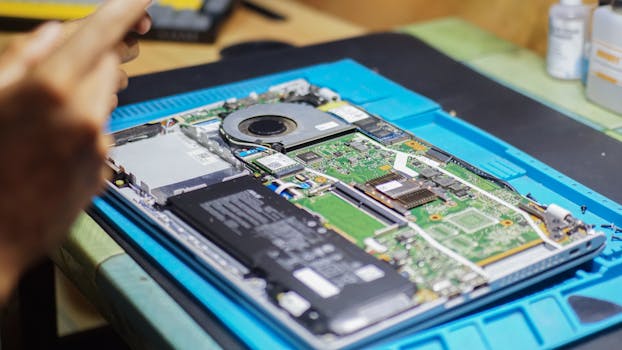 Photo: Found GHI / Pexels
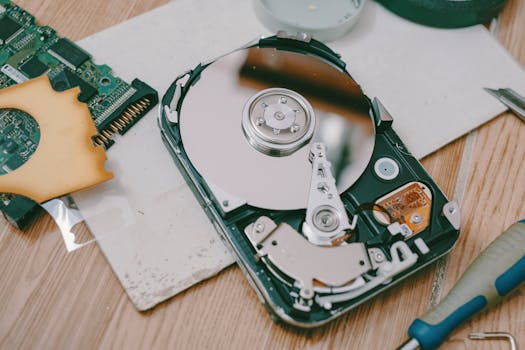 Photo: FOX ^.ᆽ.^= ∫ / Pexels