✓ Building your own PC can save money and offer better performance than pre-builts.
✓ Careful component selection is crucial for compatibility and performance goals.
✓ No prior technical expertise is required; patience and attention to detail are key.
✓ The process involves installing components into a case and connecting them.
How It Works
1
Plan Your Build & Budget
Determine your performance needs and budget. Research components like CPU, GPU, RAM, storage, and motherboard to ensure compatibility and value.
2
Gather Your Components & Tools
Purchase all selected parts and prepare necessary tools such as screwdrivers, zip ties, and an anti-static wrist strap. Organize your workspace for efficiency.
3
Assemble Core Components
Install the CPU, CPU cooler, and RAM onto the motherboard. Then, mount the motherboard into the PC case, followed by the power supply and storage drives.
4
Connect & Test
Install the graphics card, connect all necessary power and data cables, and perform initial boot-up tests. Install your operating system and drivers to finalize your build.
Understanding Your Gaming PC Components
Photo: Dave Morgan / Pexels
Embarking on the journey of how to build a gaming PC begins with a thorough understanding of its core components. Each part plays a vital role in your system's overall performance, and selecting them wisely is paramount to achieving your desired gaming experience and budget. The central processing unit (CPU) is often referred to as the brain of your computer. For gaming, you'll typically choose between Intel's Core i5/i7/i9 series or AMD's Ryzen 5/7/9 series. Higher core counts and clock speeds generally translate to better multitasking and gaming performance, especially in CPU-intensive titles. The graphics processing unit (GPU), or graphics card, is arguably the most critical component for gaming. It renders the images you see on your screen, and a powerful GPU is essential for high frame rates, resolutions, and graphics settings. NVIDIA's GeForce RTX series and AMD's Radeon RX series are the dominant players, with various models catering to different performance tiers and price points. Your choice here will heavily dictate your gaming capabilities.
Next, we have the motherboard, which acts as the central hub, connecting all your components. It needs to be compatible with your chosen CPU (e.g., LGA 1700 for Intel 12th/13th/14th Gen or AM5 for AMD Ryzen 7000 series). Motherboards also vary in features like RAM slots, M.2 slots for NVMe SSDs, and USB ports. Random Access Memory (RAM) is your system's short-term memory, crucial for running games and applications smoothly. For modern gaming, 16GB is a good baseline, with 32GB becoming increasingly popular for future-proofing and demanding titles. Look for DDR4 or the newer DDR5 modules, ensuring their speed (MHz) and latency (CL) are appropriate for your CPU and motherboard. The power supply unit (PSU) delivers electricity to all your components. Its wattage must be sufficient to power your entire system, with some headroom for future upgrades. PSUs are rated for efficiency (e.g., 80 PLUS Bronze, Gold, Platinum), indicating how much power is wasted as heat. A higher efficiency rating means less energy consumption and heat. Finally, storage comes in two main forms: Hard Disk Drives (HDDs) for bulk storage of less-accessed files, and Solid State Drives (SSDs) for your operating system, games, and frequently used applications. NVMe SSDs, which connect directly to the motherboard via M.2 slots, offer significantly faster speeds than traditional SATA SSDs, drastically reducing loading times. Understanding these components is the first step towards a successful custom PC build.
Step-by-Step Assembly: Bringing Your Vision to Life
Photo: Ron Lach / Pexels
With your components in hand, the exciting part of how to build a gaming PC begins: assembly. Before you start, lay out all your components and tools in a clean, well-lit, and static-free workspace. An anti-static wrist strap is highly recommended to prevent damage to sensitive electronics. Begin by installing the CPU onto the motherboard. Carefully lift the CPU retention arm, align the triangular arrow on the CPU with the corresponding mark on the socket, and gently place the CPU into the socket. Do not force it. Once seated, lower the retention arm. Next, install the CPU cooler. If it's an air cooler, apply thermal paste (if not pre-applied) and mount it according to the manufacturer's instructions. For liquid coolers (AIOs), mount the water block to the CPU and the radiator to your case. After the cooler, install your RAM modules. Open the clips on the RAM slots, align the notch on the RAM stick with the notch in the slot, and press firmly on both ends until the clips snap into place. Consult your motherboard manual for the correct slots to use for dual-channel or quad-channel configurations.
Now, it's time to install the motherboard into the PC case. First, install the I/O shield (if it's not integrated into the motherboard). Carefully lower the motherboard into the case, aligning it with the standoff screws. Secure it with the provided screws. Next, install the power supply unit (PSU). Mount it into its designated bay, usually at the bottom or top rear of the case, and secure it with screws. Then, connect the main 24-pin ATX power cable and the 4+4 or 8-pin EPS/CPU power cable to the motherboard. Install your storage drives. NVMe SSDs slot directly into M.2 slots on the motherboard and are secured with a small screw. SATA SSDs and HDDs slide into drive bays and are connected with SATA data and power cables. Finally, install your graphics card. Open the PCIe slot latch, align the GPU with the top PCIe x16 slot, and press it firmly until it clicks into place. Secure it to the case with screws, then connect the necessary PCIe power cables from the PSU to the GPU. This methodical approach ensures proper installation and minimizes potential issues.
Cable Management, Software, and Initial Boot-Up
Photo: Ivelin Donchev / Pexels
After all your core components are physically installed, the next crucial step in how to build a gaming PC involves cable management and the initial software setup. Effective cable management isn't just for aesthetics; it improves airflow within your case, leading to better cooling and system longevity. Begin by connecting all the front panel connectors from your case to the motherboard. These include power, reset, USB, and audio headers. Refer to your motherboard manual for the correct pin assignments, as incorrect connections can prevent your PC from booting or cause features to malfunction. Next, connect all the remaining power cables from the PSU to your components: SATA power for drives, fan headers, and any other auxiliary power connections. Route these cables neatly behind the motherboard tray, using zip ties or Velcro straps to bundle them together and keep them out of the main airflow path. This might seem tedious, but good cable management pays dividends in both performance and future maintenance.
Once all cables are connected and managed, it's time for the first boot-up. Before closing your case, connect a monitor, keyboard, and mouse to the motherboard's I/O ports. Power on your system. If everything is connected correctly, you should see your motherboard's BIOS/UEFI splash screen. If not, troubleshoot by checking power connections, RAM seating, and GPU installation. Once in the BIOS/UEFI, ensure all your components are recognized (CPU, RAM, storage drives). You may need to enable XMP/DOCP for your RAM to run at its advertised speed. Save your settings and exit. The next step is to install your operating system, typically Windows. Create a bootable USB drive with the Windows installation media (using Microsoft's Media Creation Tool) on another computer. Insert the USB, reboot your new PC, and boot from the USB drive. Follow the on-screen prompts to install Windows on your primary SSD. After Windows is installed, the final critical step is to install all necessary drivers. Start with the motherboard chipset drivers, then your graphics card drivers (downloaded from NVIDIA or AMD's website), and finally, any other peripheral drivers. Keeping your drivers updated is essential for optimal performance and stability. A successful first PC boot is a rewarding moment.
Common Mistakes to Avoid & Optimization Tips
Photo: Ron Lach / Pexels
Building a gaming PC can be a straightforward process, but a few common pitfalls can trip up even experienced builders. Avoiding these mistakes will save you time, frustration, and potentially costly component damage. One of the most frequent errors is forgetting to install the I/O shield before mounting the motherboard. While not critical for function, it's a pain to go back and install it later. Another common issue is not properly seating RAM modules or the graphics card; ensure they click firmly into place. Always double-check all power connections, especially the 24-pin ATX, 8-pin CPU, and PCIe power cables for the GPU. A loose connection can prevent boot-up or cause system instability. Incorrect thermal paste application on the CPU, either too little or too much, can lead to overheating. A pea-sized dot or a single line is usually sufficient. Finally, neglecting to install drivers after OS installation will result in poor performance; your GPU won't perform optimally without its specific drivers.
To optimize your newly built gaming PC for peak performance and longevity, consider these tips:
* **BIOS/UEFI Configuration:** Enable XMP/DOCP for your RAM to run at its rated speed. Check fan curves to ensure adequate cooling without excessive noise. You can also fine-tune boot order and other system settings here.
* **Driver Updates:** Regularly update your graphics card drivers directly from NVIDIA or AMD's websites, and keep your motherboard chipset drivers current. These updates often bring performance improvements and bug fixes.
* **Cable Management:** Beyond aesthetics, good cable management improves airflow, which is critical for cooling. Ensure cables aren't obstructing fans or airflow pathways.
* **Fan Configuration:** Optimize your case fan setup for positive or negative air pressure, depending on your case design, to maximize cooling efficiency and minimize dust buildup. Generally, more intake than exhaust creates positive pressure, pushing dust out.
* **Software & Background Processes:** Keep your operating system lean by uninstalling bloatware. Close unnecessary background applications while gaming to free up CPU and RAM resources.
* **Monitoring:** Use software like HWMonitor or MSI Afterburner to monitor CPU and GPU temperatures, clock speeds, and usage during gaming. This helps identify any thermal throttling or performance bottlenecks.
* **Overclocking (Optional):** If comfortable, you can gently overclock your CPU, GPU, or RAM to squeeze out extra performance, but research thoroughly and proceed with caution. This will require adequate cooling.
By avoiding common mistakes and implementing these optimization tips, your DIY gaming PC will deliver an exceptional and reliable gaming experience for years to come.
Comparison
Feature
DIY Gaming PC
Pre-built Gaming PC
Gaming Laptop
Cost-Effectiveness
Excellent (Better parts for price)
Good (Convenience premium)
Fair (Portability premium)
Customization
Unlimited (Choose every part)
Limited (Configurable options)
Very Limited (Fixed components)
Upgradeability
Excellent (Modular parts)
Good (Some parts upgradeable)
Poor (RAM/Storage only)
Performance/Dollar
Highest (Targeted component choice)
High (Balanced configurations)
Moderate (Thermal/size constraints)
Repairability
High (Replace individual parts)
Moderate (Warranty dependent)
Low (Complex, proprietary parts)
Learning Curve
✓
✗
✗
What Readers Say
★★★★★
"This guide made learning how to build a gaming PC incredibly straightforward. I was intimidated at first, but the clear instructions and component breakdown gave me the confidence to complete my first build, and it runs flawlessly!"
Alex R. · Austin, TX
★★★★★
"I followed this article step-by-step, and my new custom gaming rig is a beast. The section on component compatibility was especially helpful in ensuring I didn't make any costly mistakes. Highly recommend for any first-time builder."
Sarah K. · Miami, FL
★★★★★
"My old PC was struggling, and I saved hundreds building my own with this guide. Games now run at ultra settings, and the entire process was far easier than I expected, thanks to the detailed explanations."
Mark D. · Seattle, WA
★★★★★
"While the guide was excellent, I did struggle a bit with the front panel connectors. A slightly more detailed diagram for those might be beneficial, but overall, it's a fantastic resource for anyone wanting to build a gaming PC."
Jessica L. · Denver, CO
★★★★★
"As a budget-conscious gamer, this article showed me how to build a gaming PC that outperforms expensive pre-builts at a fraction of the cost. The optimization tips really helped fine-tune my system for maximum FPS."
Chris B. · Chicago, IL
Frequently Asked Questions
Is it really cheaper to build your own gaming PC?
Yes, in most cases, building your own gaming PC is significantly cheaper than buying a comparable pre-built system. You get to choose each component, ensuring you pay only for what you need and often get better performance-per-dollar by avoiding manufacturer markups and unnecessary bundled software.
Do I need any special tools to build a PC?
You don't need many special tools. A Philips head screwdriver is essential, along with some zip ties or Velcro straps for cable management. An anti-static wrist strap is highly recommended to protect sensitive components from static electricity, though it's not strictly mandatory if you take other precautions.
How long does it take to build a gaming PC for the first time?
For a first-time builder, the physical assembly process can take anywhere from 3 to 6 hours, depending on your familiarity and the complexity of your build. This doesn't include the time spent researching components, installing the operating system, and drivers, which can add several more hours.
What is the most important component for gaming performance?
While all components contribute, the Graphics Processing Unit (GPU) is generally considered the most critical component for gaming performance. It directly impacts frame rates, resolution capabilities, and visual quality. Investing in a powerful GPU will yield the most significant performance gains in games.
Should I buy an Intel or AMD CPU for gaming?
Both Intel and AMD offer excellent CPUs for gaming, and the best choice often depends on your budget and specific performance needs. Historically, Intel held a slight edge in single-core performance, while AMD excelled in multi-core tasks. Modern generations from both companies are very competitive, so compare specific models and their price-to-performance ratio for your chosen games.
Who should consider building their own gaming PC?
Anyone looking for a custom gaming experience, better value for money, the satisfaction of a DIY project, or the flexibility to upgrade components later should consider building their own gaming PC. It's also ideal for those who enjoy learning about technology and want a system tailored precisely to their needs.
Can I damage components during the build process?
While it's possible to damage components, especially with excessive force or static discharge, modern PC parts are surprisingly robust. By following instructions carefully, using an anti-static wrist strap, and avoiding brute force, the risk of damage is minimal. Most mistakes are fixable and don't lead to permanent damage.
What are the future trends in gaming PC components?
Future trends include continued advancements in CPU core counts and efficiency, more powerful and energy-efficient GPUs, faster DDR5 RAM, and increased adoption of PCIe Gen 5 for storage and graphics, leading to even quicker load times and greater bandwidth. Expect more integration of AI acceleration and advanced cooling solutions as well.
Now that you know how to build a gaming PC, it's time to take control of your gaming destiny. Gather your components, follow our expert guide, and unleash the full potential of a custom-built machine designed just for you. Start building your ultimate gaming experience today!
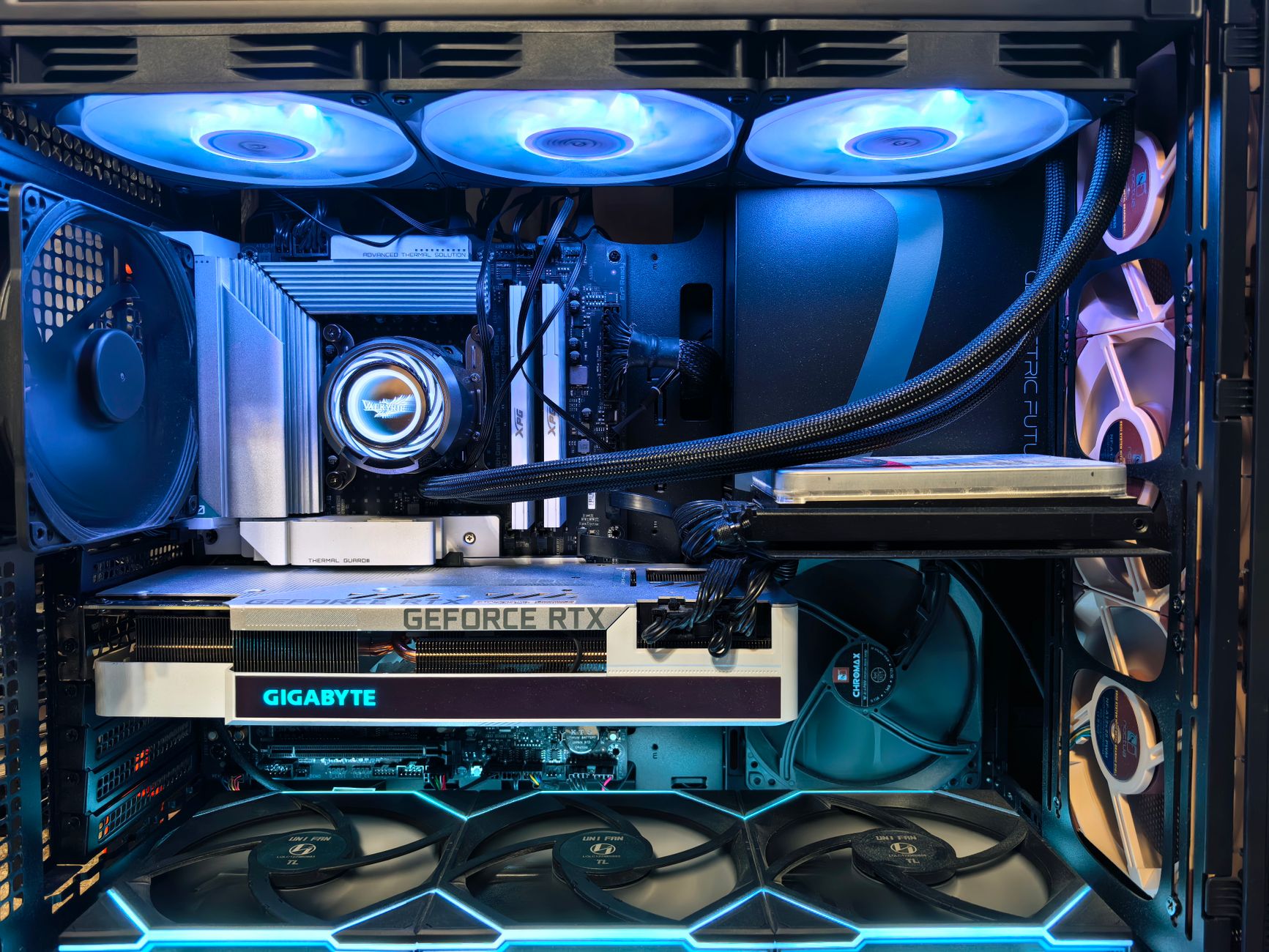
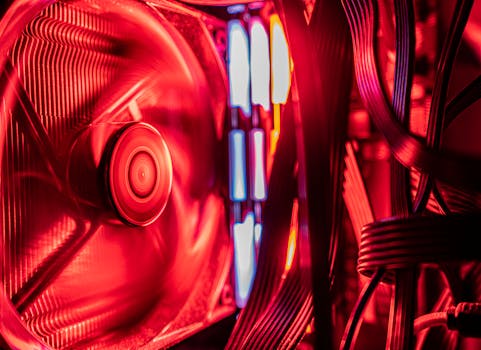 Photo: Dave Morgan / Pexels
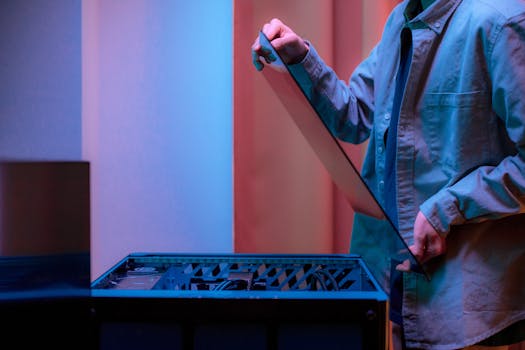 Photo: Ron Lach / Pexels
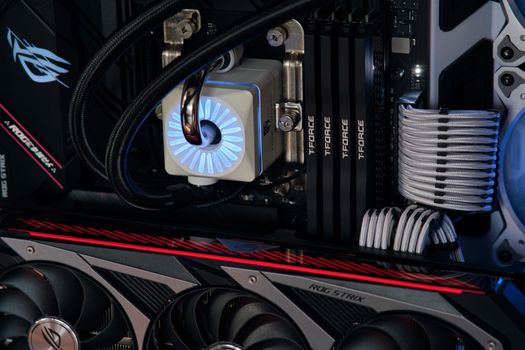 Photo: Ivelin Donchev / Pexels
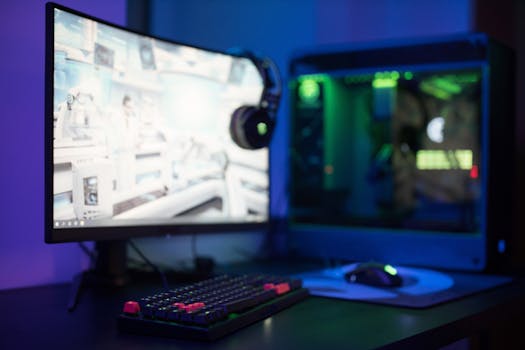 Photo: Ron Lach / Pexels