✓ SSDs offer significantly faster speeds than HDDs, crucial for performance-intensive tasks.
✓ Thunderbolt connectivity provides the fastest data transfer rates, ideal for professionals.
✓ Compatibility with macOS is paramount; ensure drives are pre-formatted for Mac or easily formatted.
✓ Capacity needs vary widely, from 500GB for casual backups to multi-TB for media professionals.
How It Works
1
Assess Your Needs
Determine your primary use case: backup, video editing, gaming, or general storage. This will dictate required capacity, speed, and portability.
2
Choose Drive Type
Decide between Solid State Drives (SSDs) for speed and durability, or Hard Disk Drives (HDDs) for maximum capacity at a lower cost per gigabyte.
3
Select Connectivity
Match the drive's ports (Thunderbolt, USB-C, USB-A) to your Mac's available ports. Thunderbolt offers the fastest speeds, while USB-C is versatile.
4
Consider Features
Look for features like ruggedness, hardware encryption, included software, and pre-formatting for macOS to enhance your user experience.
Understanding Your Mac's Storage Needs and Options
Photo: Jakub Zerdzicki / Pexels
Every Mac user, from the casual browser to the professional video editor, eventually faces the challenge of limited internal storage. While Apple's integrated SSDs are incredibly fast, they come at a premium, making external storage an indispensable companion. Choosing the best external hard drive for Mac isn't a one-size-fits-all decision; it depends heavily on your specific workflow, budget, and desired performance.
Before diving into specific recommendations, it's crucial to understand the fundamental types of external drives available: Hard Disk Drives (HDDs) and Solid State Drives (SSDs). HDDs are the traditional workhorses, offering vast capacities at a relatively low cost per gigabyte. They utilize spinning platters and read/write heads to store data, making them ideal for archiving large files, Time Machine backups, or storing extensive media libraries where raw speed isn't the absolute priority. However, their mechanical nature makes them more susceptible to physical shock and slower in data transfer.
SSDs, on the other hand, represent the cutting edge of external storage. Lacking any moving parts, they are significantly faster, more durable, and more compact than HDDs. This speed advantage is paramount for tasks like editing high-resolution video directly from the drive, running virtual machines, or quickly transferring large project files. While SSDs command a higher price per gigabyte, their performance benefits often outweigh the cost for professionals and users demanding peak efficiency. The shift towards USB-C and Thunderbolt ports on modern Macs has further amplified the performance potential of external SSDs, allowing them to reach their full speed capabilities.
Beyond the core drive type, connectivity plays a pivotal role in overall performance. Modern Macs primarily feature Thunderbolt and USB-C (which often supports USB 3.1 Gen 2 or USB 3.2 Gen 2x2). Thunderbolt, especially Thunderbolt 3 and 4, offers blistering speeds up to 40Gbps, making it the preferred choice for professional-grade SSDs and multi-drive enclosures. USB-C is incredibly versatile, supporting various USB standards with speeds ranging from 5Gbps to 20Gbps, depending on the specific implementation. Understanding these distinctions is the first step in making an informed choice for your Mac's external storage needs. For more on optimizing your Mac's performance, check out our guide on how to speed up your Mac.
Top Contenders: SSD vs. HDD for Mac Users
Photo: Markus Spiske / Pexels
When evaluating the best external hard drive for Mac, the SSD vs. HDD debate is central to the decision-making process. Each technology offers distinct advantages and disadvantages tailored to different user profiles and budgets.
**Solid State Drives (SSDs): The Speed Demons**
* **Pros:** Unmatched speed for reading and writing data (often exceeding 1000MB/s for NVMe SSDs with Thunderbolt/USB 3.2 Gen 2x2), superior durability due to no moving parts, compact and lightweight form factors, silent operation, and lower power consumption. These attributes make SSDs ideal for booting operating systems, running demanding applications, editing 4K/8K video directly from the drive, and as primary storage for active projects. Their resilience makes them excellent for users on the go.
* **Cons:** Higher cost per gigabyte compared to HDDs, meaning you'll pay more for less storage capacity. While prices have come down significantly, a large-capacity SSD (e.g., 4TB or more) can still be a substantial investment.
**Hard Disk Drives (HDDs): The Capacity Kings**
* **Pros:** Significantly lower cost per gigabyte, allowing for much larger capacities (up to 20TB or more in a single drive) at an affordable price point. HDDs are perfect for long-term archiving, comprehensive Time Machine backups, storing massive photo and video libraries, and any scenario where sheer volume of data is more important than blazing speed.
* **Cons:** Slower data transfer speeds (typically 100-200MB/s), mechanical moving parts make them more vulnerable to drops and physical shock, audible noise during operation, and generally larger and heavier form factors. They are less suitable for tasks requiring frequent, high-speed data access.
For many Mac users, a hybrid approach might be the most practical. An external SSD could serve as a fast scratch disk for video editing or for storing current projects, while a larger, more affordable HDD handles Time Machine backups and archival storage. This strategy allows you to leverage the strengths of both technologies without breaking the bank. Consider your most frequent storage tasks and allocate your budget accordingly. If you're constantly transferring large files or working with high-resolution media, the investment in an SSD will pay dividends in time saved and increased productivity. If your primary need is simply to store a vast amount of data for occasional access, an HDD remains an excellent, cost-effective choice.
Connectivity, Compatibility, and Essential Features for Mac
Photo: https://kaboompics.com/ / Pexels
Beyond the type of drive, the interface used to connect your external storage to your Mac is paramount to its performance and compatibility. Modern Macs primarily utilize Thunderbolt and USB-C ports, and understanding their capabilities is key to selecting the best external hard drive for Mac.
**Thunderbolt (3 & 4): The Ultimate Performance**
Thunderbolt 3 and 4 ports are identical in form factor to USB-C but offer vastly superior bandwidth, up to 40Gbps. This makes them ideal for professional-grade external SSDs, multi-drive RAID enclosures, and daisy-chaining multiple high-bandwidth devices. If you're working with 4K/8K video, large scientific datasets, or require the absolute fastest transfer speeds, a Thunderbolt-enabled external drive is your best bet. Keep in mind that while Thunderbolt ports are backward compatible with USB-C devices, you won't get Thunderbolt speeds with a standard USB-C drive.
**USB-C (USB 3.1 Gen 2, USB 3.2 Gen 2x2): Versatility and Speed**
USB-C is a ubiquitous, reversible connector found on nearly all modern Macs. It supports various USB standards, with USB 3.1 Gen 2 offering speeds up to 10Gbps and USB 3.2 Gen 2x2 reaching 20Gbps. These speeds are more than adequate for most users, including photographers, musicians, and general power users. Many external SSDs now come with USB-C connectivity, providing a great balance of speed, affordability, and widespread compatibility.
**USB-A (USB 3.0/3.1 Gen 1): Legacy and Compatibility**
Older Macs might still have USB-A ports (USB 3.0/3.1 Gen 1), which offer speeds up to 5Gbps. While slower than Thunderbolt or newer USB-C standards, these ports are still perfectly capable for basic backups and less demanding tasks. If your Mac only has USB-A, you might need an adapter for newer USB-C or Thunderbolt drives, or specifically seek out drives with USB-A connectivity.
**Compatibility & Formatting:** Out of the box, most external drives are formatted for Windows (NTFS). For optimal performance and seamless integration with macOS, you'll want to format the drive to Apple File System (APFS) or Mac OS Extended (Journaled). APFS is recommended for SSDs, while Mac OS Extended (Journaled) is suitable for HDDs. This can be easily done using Disk Utility on your Mac.
**Essential Features:**
* **Portability & Ruggedness:** If you travel frequently, look for compact, lightweight SSDs with shock-resistant casings. Some drives are designed to withstand drops and splashes.
* **Hardware Encryption:** For sensitive data, drives with built-in hardware encryption offer an extra layer of security, protecting your files even if the drive falls into the wrong hands.
* **Included Software:** Some manufacturers bundle backup software, drive management utilities, or even cloud storage trials. While macOS's Time Machine is excellent, these additions can sometimes offer extra functionality.
* **Power Source:** Most external SSDs are bus-powered (drawing power from your Mac's port), which is convenient. Larger HDDs or multi-drive enclosures might require an external power adapter. For deeper insights into managing your digital life, explore our guide on digital decluttering tips.
Choosing the Right Drive: Tips and Common Mistakes to Avoid
Photo: Julio Lopez / Pexels
Selecting the best external hard drive for Mac can be daunting, but by following a few key tips and avoiding common pitfalls, you can make an informed decision that perfectly suits your needs.
**Tips for Choosing:**
* **Future-Proof Your Purchase:** While your current Mac might have USB-C, consider a Thunderbolt 3/4 drive if you anticipate upgrading to a newer, more powerful Mac in the next few years. The extra bandwidth will be ready when you are.
* **Balance Capacity and Speed:** Don't overspend on a massive, ultra-fast SSD if your primary use is archiving old photos. Conversely, don't compromise on speed if you're editing 4K video daily. Find the sweet spot for your workload.
* **Read Reviews, Especially Mac-Specific Ones:** While general reviews are helpful, look for feedback from other Mac users regarding compatibility, formatting ease, and Time Machine integration.
* **Consider Manufacturer Reputation:** Brands like Samsung, Western Digital, Seagate, Crucial, and G-Technology (now SanDisk Professional) have strong reputations for reliability and customer support.
* **Don't Forget Backups:** An external drive is excellent for storage, but it's not a backup solution in itself. Always adhere to the 3-2-1 backup rule: three copies of your data, on two different media types, with one copy offsite. Your external drive can be one of those copies, but ensure your most critical data is also backed up to another location, such as a cloud service or a second external drive.
**Common Mistakes to Avoid:**
* **Ignoring Connectivity:** Buying a super-fast NVMe SSD but connecting it via an old USB 2.0 port is like putting a race car on bicycle tires. Ensure your drive's interface matches or exceeds your Mac's port capabilities for optimal performance.
* **Neglecting Formatting:** Using an NTFS-formatted drive on a Mac without specific software (like Paragon NTFS for Mac) will limit you to read-only access. Always reformat to APFS or Mac OS Extended (Journaled) for full read/write capabilities.
* **Underestimating Capacity Needs:** It's easy to fill up a drive faster than you expect. Factor in future growth and choose a capacity that gives you some breathing room. For example, if you think you need 1TB, consider a 2TB drive.
* **Prioritizing Price Over Durability (for portable drives):** If you're carrying your drive frequently, a rugged, shock-resistant model is worth the extra cost. A cheap, fragile drive can lead to costly data loss.
* **Not Testing Immediately:** As soon as you get your new drive, connect it, format it, and transfer some files to ensure it's working correctly and that you understand the process. This prevents discovering issues when you desperately need to use it.
By carefully considering these points, you can confidently select an external hard drive that integrates seamlessly with your Mac and enhances your digital workflow.
Comparison
Feature
Samsung T7 Shield (Best Overall SSD)
SanDisk Professional G-DRIVE ArmorATD (Rugged HDD)
OWC Envoy Pro FX (Premium Thunderbolt SSD)
Type
Portable SSD
Portable HDD
Portable NVMe SSD
Capacity Range
1TB - 4TB
1TB - 5TB
240GB - 4TB
Interface
USB 3.2 Gen 2 (USB-C)
USB 3.1 Gen 1 (USB-C)
Thunderbolt 3/4 & USB 3.2 Gen 2
Max Read Speed
Up to 1,050 MB/s
Up to 140 MB/s
Up to 2,800 MB/s
Max Write Speed
Up to 1,000 MB/s
Up to 140 MB/s
Up to 2,500 MB/s
Ruggedness
IP65 water/dust, 9.8ft drop
1000lb crush, 9.8ft drop, rain
8ft drop rated
Hardware Encryption
✓
✗
✗
Pre-formatted for Mac
✗ (Easy to format)
✓ (HFS+)
✓ (APFS)
Price (approx. 2TB)
$160
$120
$400
What Readers Say
★★★★★
"The Samsung T7 Shield is the best external hard drive for my Mac. It's incredibly fast for video editing and the rugged design gives me peace of mind when I'm on location. File transfers are instant!"
Sarah J. · Austin, TX
★★★★★
"I needed a reliable backup solution for my MacBook Pro, and the SanDisk G-DRIVE ArmorATD has been perfect. It's tough, has plenty of space for my Time Machine backups, and works flawlessly with macOS."
Mark L. · Seattle, WA
★★★★★
"As a photographer, offloading huge RAW files quickly is crucial. The OWC Envoy Pro FX connected via Thunderbolt to my Mac Studio slashed my transfer times by over 70%, boosting my workflow dramatically."
Emily R. · New York, NY
★★★★★
"I picked up a Western Digital My Passport for Mac, and it's a solid, affordable option for general storage. While not the fastest, its plug-and-play simplicity and Time Machine compatibility are great for everyday use."
David P. · Denver, CO
★★★★★
"For my older iMac, I found that a good USB-C to USB-A adapter combined with a Crucial X8 SSD gave me a significant speed boost over my old HDD. It's a fantastic upgrade without buying a new Mac."
Jessica M. · Los Angeles, CA
Frequently Asked Questions
What is the best external hard drive for Mac for video editing?
For video editing, especially 4K or 8K footage, an external NVMe SSD with Thunderbolt 3 or 4 connectivity is paramount. This combination provides the highest sustained read/write speeds, allowing you to edit directly from the drive without lag or dropped frames. Look for drives like the OWC Envoy Pro FX or high-performance Samsung X5.
Do I need to reformat an external hard drive for Mac?
Yes, it is highly recommended. Most external hard drives come pre-formatted for Windows (NTFS), which allows Macs to read but not write data without third-party software. Reformatting to APFS (for SSDs) or Mac OS Extended (Journaled) for HDDs using Disk Utility ensures full read/write capability, optimal performance, and seamless integration with macOS features like Time Machine.
How do I connect an external hard drive to my Mac?
Connecting an external hard drive to your Mac is straightforward. Simply plug the drive's cable into the appropriate port on your Mac (USB-C, Thunderbolt 3/4, or older USB-A). Your Mac should recognize the drive automatically. If it's a new drive, you'll likely need to format it using Disk Utility before you can start saving files.
Are expensive external hard drives for Mac worth it?
The value of an expensive external hard drive for Mac depends entirely on your usage. If you're a professional who relies on speed and durability for income-generating work (e.g., video production, graphic design), the investment in a high-speed Thunderbolt SSD is often justified by increased productivity and reliability. For casual backups or storing less critical data, a more affordable HDD or mid-range USB-C SSD offers better value.
What's the difference between an external SSD and an external HDD for Mac?
The primary difference lies in speed, durability, and cost. External SSDs (Solid State Drives) are much faster, more durable, and compact due to their lack of moving parts, but they are more expensive per gigabyte. External HDDs (Hard Disk Drives) are slower and more fragile due to spinning platters, but offer significantly larger capacities at a lower cost, making them ideal for archiving and large backups.
Who should prioritize a rugged external hard drive for Mac?
Anyone who frequently travels with their data, works in challenging environments (e.g., on film sets, outdoor photography), or is prone to accidental drops should prioritize a rugged external hard drive. These drives are designed with shock-resistant casings, and often boast water and dust resistance, offering crucial protection against data loss in adverse conditions.
Is it safe to unplug an external hard drive from my Mac without ejecting it first?
No, it is generally not safe to unplug an external hard drive without first ejecting it. Improperly ejecting a drive can lead to data corruption, file loss, or even damage to the drive itself, especially if data is actively being written at the time. Always right-click the drive icon on your desktop or in Finder and select 'Eject' before disconnecting.
What are the future trends for external storage on Mac?
Future trends for external storage on Mac will likely focus on even faster Thunderbolt and USB standards, pushing speeds beyond 40Gbps and 20Gbps respectively. We can expect higher-capacity NVMe SSDs to become more affordable, and further integration with cloud services. Additionally, modular storage solutions and increasingly compact, power-efficient designs will continue to evolve.
Choosing the best external hard drive for your Mac is a crucial decision that impacts your workflow and data security. By understanding your specific needs and the options available, you can select a drive that perfectly complements your Apple ecosystem. Don't let limited storage hold you back – upgrade your Mac's capabilities today with the right external drive.

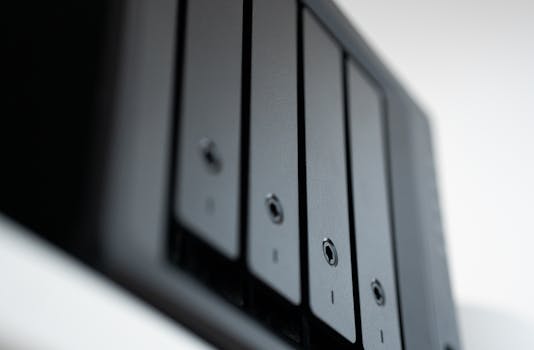 Photo: Jakub Zerdzicki / Pexels
 Photo: Markus Spiske / Pexels
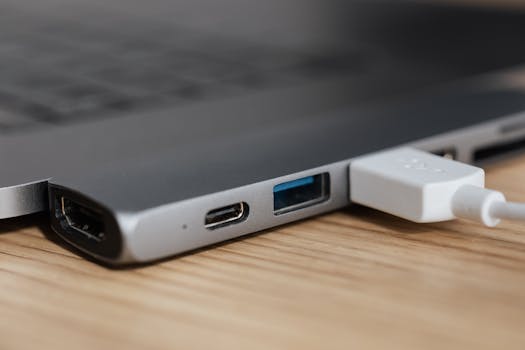 Photo: https://kaboompics.com/ / Pexels
 Photo: Julio Lopez / Pexels